# The console
> Tracon documentation. Tracon is a .NET package family that adds a control
> plane on Microsoft Agent Framework, published as NuGet packages that run
> inside your own ASP.NET Core application.
>
> Page: https://tracon.dev/ui/
> Summary: Tour the embedded Tracon console by task, understand its security model, and know which features remain code or HTTP only.
The console ships inside `Tracon.UI` as a pre-built, Brotli-compressed
single-page application. There is no `node_modules` in your project and no JavaScript
build in your pipeline.
```csharp
builder.AddTracon()
.UseOpenAI(apiKey)
.UseUI();
app.MapTracon("/tracon");
```
There is no separate mapping call. `MapTracon` finds the registration and binds
the console under the same prefix, so the prefix is written once.
:::note[Screenshots]
Every image on this page is produced by the end-to-end test run, in a real browser,
against a real server. The same run asserts each screen's landmark element, so a
screen that stops rendering fails the build instead of leaving a stale picture here.
:::
## How it is laid out
The console is built for an operator who leaves it open, not for a visitor who
reads it once. Dark is the default palette, the base text size is 13 px, and a
table row is about 32 px tall.
Navigation is split by the job you are doing. **Operate** holds what the airspace
is doing right now — dashboard, playground, runs, sessions, approvals, jobs,
evaluations, audit, diagnostics. **Configure** holds what is allowed to fly —
agents, workflows, tools, skills, models, MCP servers, triggers, settings.
There is one accent colour. Everything else that is coloured is a status, and the
same status is the same colour on every screen:
| Reads as | Means |
|---|---|
| Accent | In flight now — a run streaming, the row you are on |
| Green | Cleared — completed, healthy, approved |
| Amber | Holding — queued, waiting on a person, degraded |
| Red | Denied — failed, rejected, unhealthy |
| Blue | Contact — something started or was attached |
| Grey | Standby — cancelled, idle, structural |
Colour is never the only signal: every status also carries its own word, and
charts use a separate series palette so a line is never mistaken for a verdict.
Both palettes are measured against WCAG AA on every build — text at 5.2:1 or
better, borders and graphics at 3.5:1 or better, in both themes.
Every identifier — a run, a session, a tenant, a span, an API key prefix — is
monospace at one size, so two of them can be compared by shape. The ones worth
moving into a query or a ticket carry a copy control.
## Dashboard
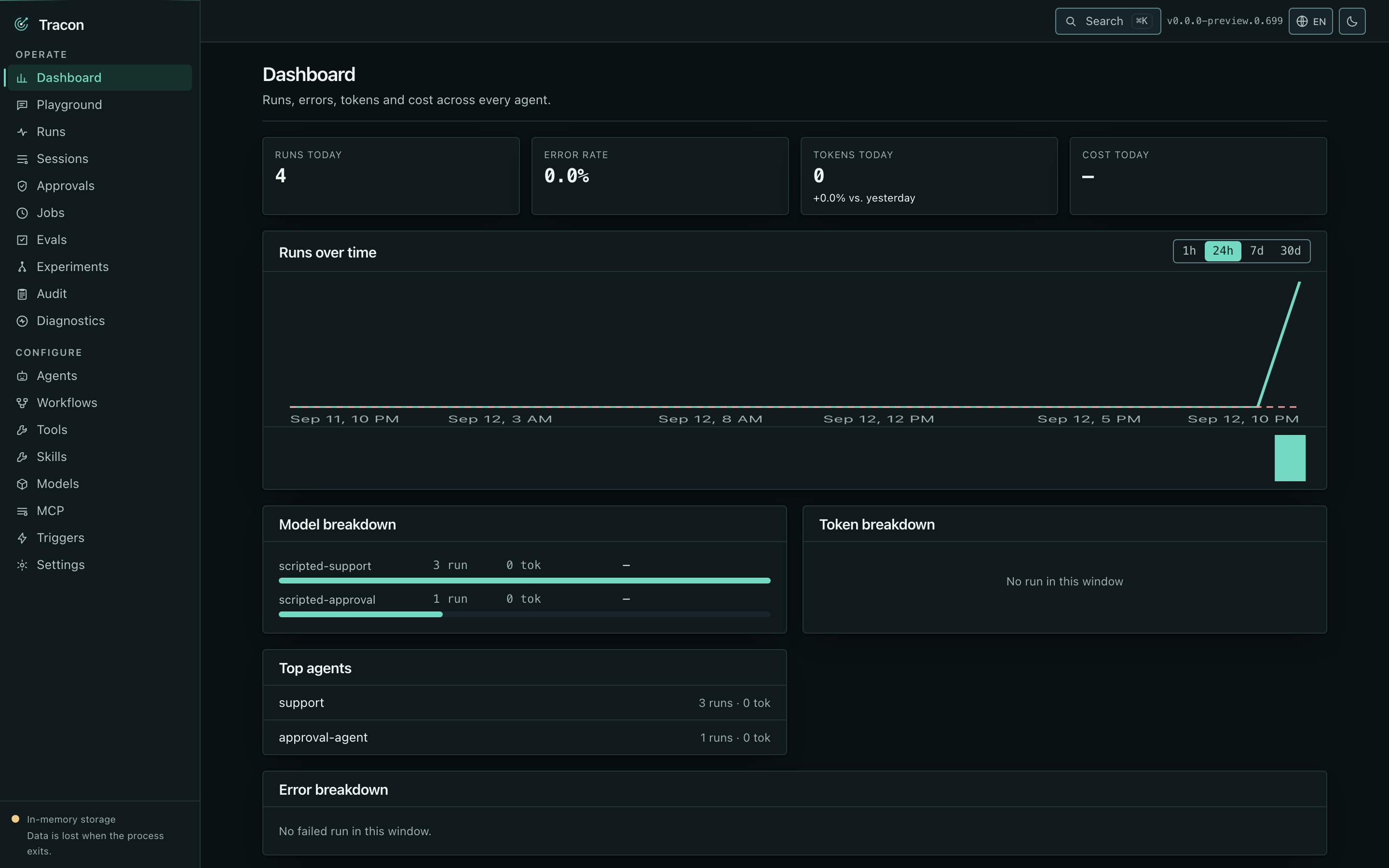 Runs, errors, tokens, and cost across every agent, over a window you choose. Cost
appears only when pricing is configured; models with no pricing are counted
separately rather than silently written as zero.
A **token breakdown** bar shows where the tokens actually went: prompt-cache hits,
fresh input, reasoning, and plain output. The four slices are disjoint — cache hits
and reasoning are re-cut out of the input and output totals rather than added
beside them, so the bar is never longer than the tokens that were spent. Each slice
is named with its own count underneath, so colour is never the only signal.
The footer always states which storage is active. In the screenshot above it says
in-memory — a reminder that this data ends with the process.
## Agents
Runs, errors, tokens, and cost across every agent, over a window you choose. Cost
appears only when pricing is configured; models with no pricing are counted
separately rather than silently written as zero.
A **token breakdown** bar shows where the tokens actually went: prompt-cache hits,
fresh input, reasoning, and plain output. The four slices are disjoint — cache hits
and reasoning are re-cut out of the input and output totals rather than added
beside them, so the bar is never longer than the tokens that were spent. Each slice
is named with its own count underneath, so colour is never the only signal.
The footer always states which storage is active. In the screenshot above it says
in-memory — a reminder that this data ends with the process.
## Agents
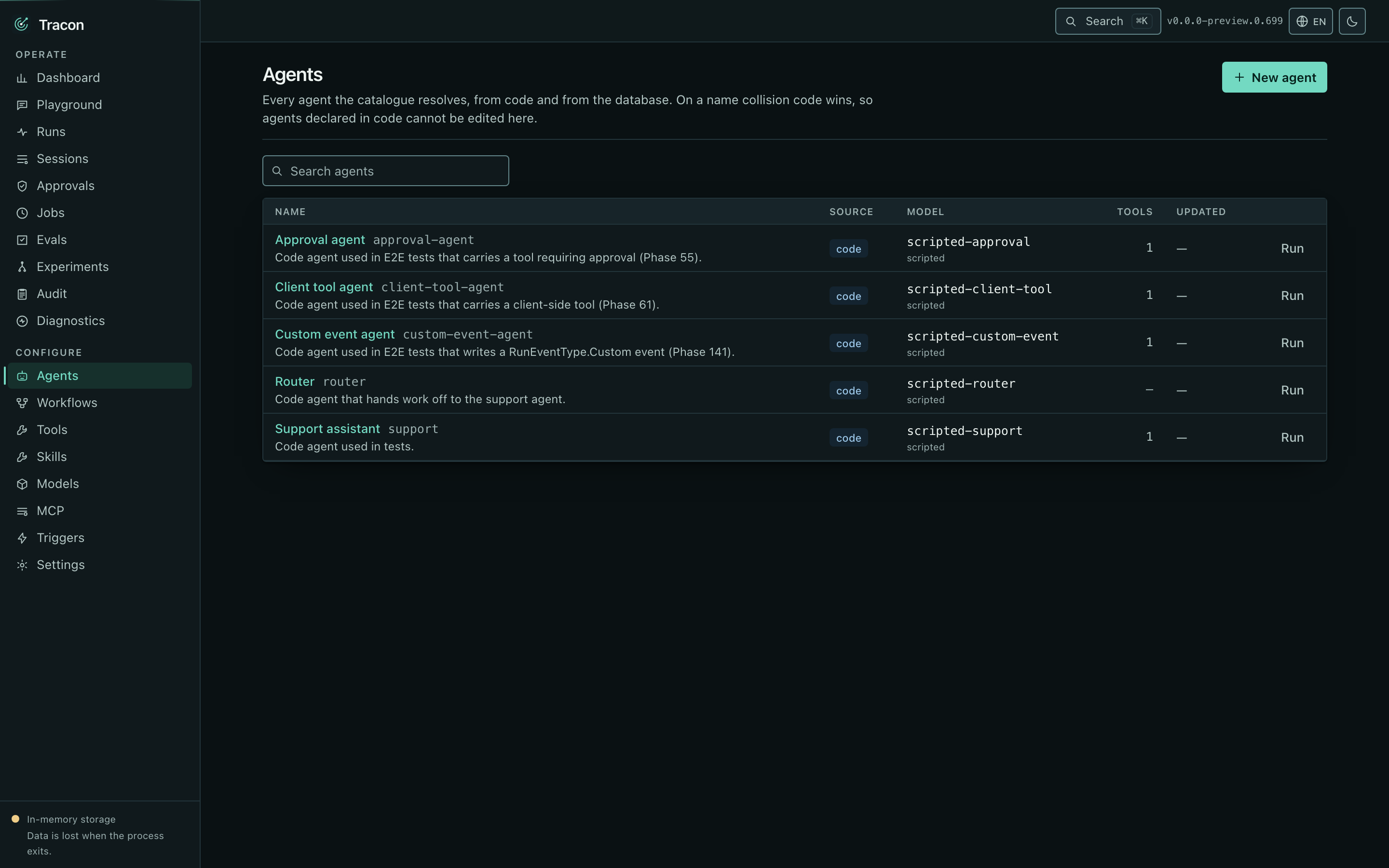 Code-defined and database-defined agents in one list. The origin is on each entry,
because it decides what you can do: a code agent can be run and read but not edited,
and the console hides the edit form rather than offering one that would fail.
Code-defined and database-defined agents in one list. The origin is on each entry,
because it decides what you can do: a code agent can be run and read but not edited,
and the console hides the edit form rather than offering one that would fail.
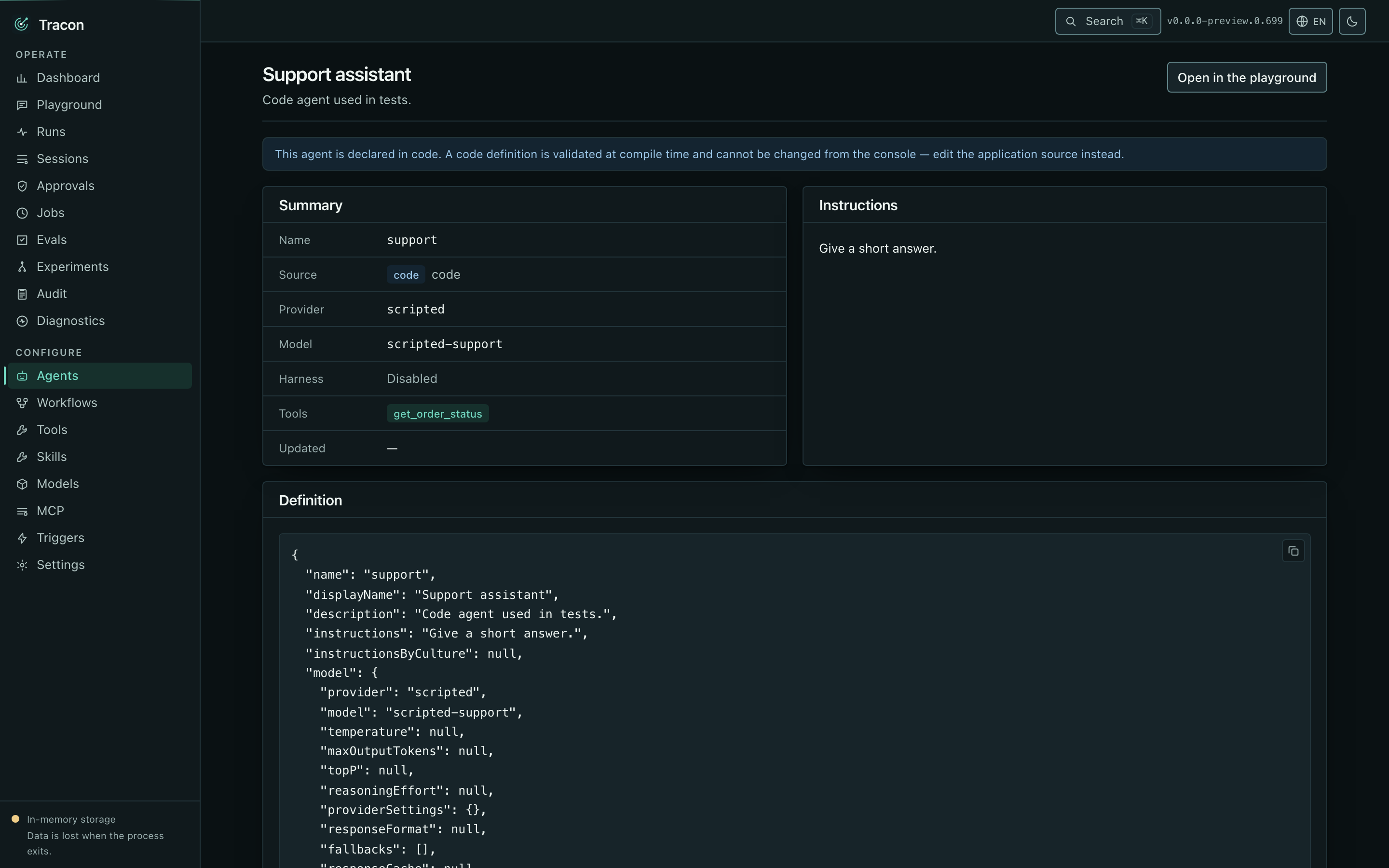 The detail screen carries the model binding, tools, skills, callable agents, and — for
a database agent — the version history with a diff between any two versions and a
one-click rollback.
The editor validates as you save, using the same rules the compiler applies. An
unknown tool, skill, or extension name is refused at write time, not on the first run.
The Skills panel has one box, *Read skills without approval*. Check it for an agent that runs where
nobody can answer an approval, such as one you expose over A2A or MCP; a script
keeps its approval ([approval of the skill tools](/concepts/tools/#approval-of-the-skill-tools)).
The Extensions panel lists the extensions the host registered. It keeps a name the host
no longer registers, with a mark, so you can remove it. The Callable agents panel picks the
agents this one may call and the [call mode](/concepts/agents/#one-tool-for-each-agent):
background tasks, or one tool for each agent. Under a checked agent that is stored in the
database, a select pins the call to one of the agent's versions
([Pin a callable agent to a version](/concepts/agents/#pin-a-callable-agent-to-a-version)); the
default is its current version. The version compare shows a change of mode and a change of pin.
The detail screen carries the model binding, tools, skills, callable agents, and — for
a database agent — the version history with a diff between any two versions and a
one-click rollback.
The editor validates as you save, using the same rules the compiler applies. An
unknown tool, skill, or extension name is refused at write time, not on the first run.
The Skills panel has one box, *Read skills without approval*. Check it for an agent that runs where
nobody can answer an approval, such as one you expose over A2A or MCP; a script
keeps its approval ([approval of the skill tools](/concepts/tools/#approval-of-the-skill-tools)).
The Extensions panel lists the extensions the host registered. It keeps a name the host
no longer registers, with a mark, so you can remove it. The Callable agents panel picks the
agents this one may call and the [call mode](/concepts/agents/#one-tool-for-each-agent):
background tasks, or one tool for each agent. Under a checked agent that is stored in the
database, a select pins the call to one of the agent's versions
([Pin a callable agent to a version](/concepts/agents/#pin-a-callable-agent-to-a-version)); the
default is its current version. The version compare shows a change of mode and a change of pin.
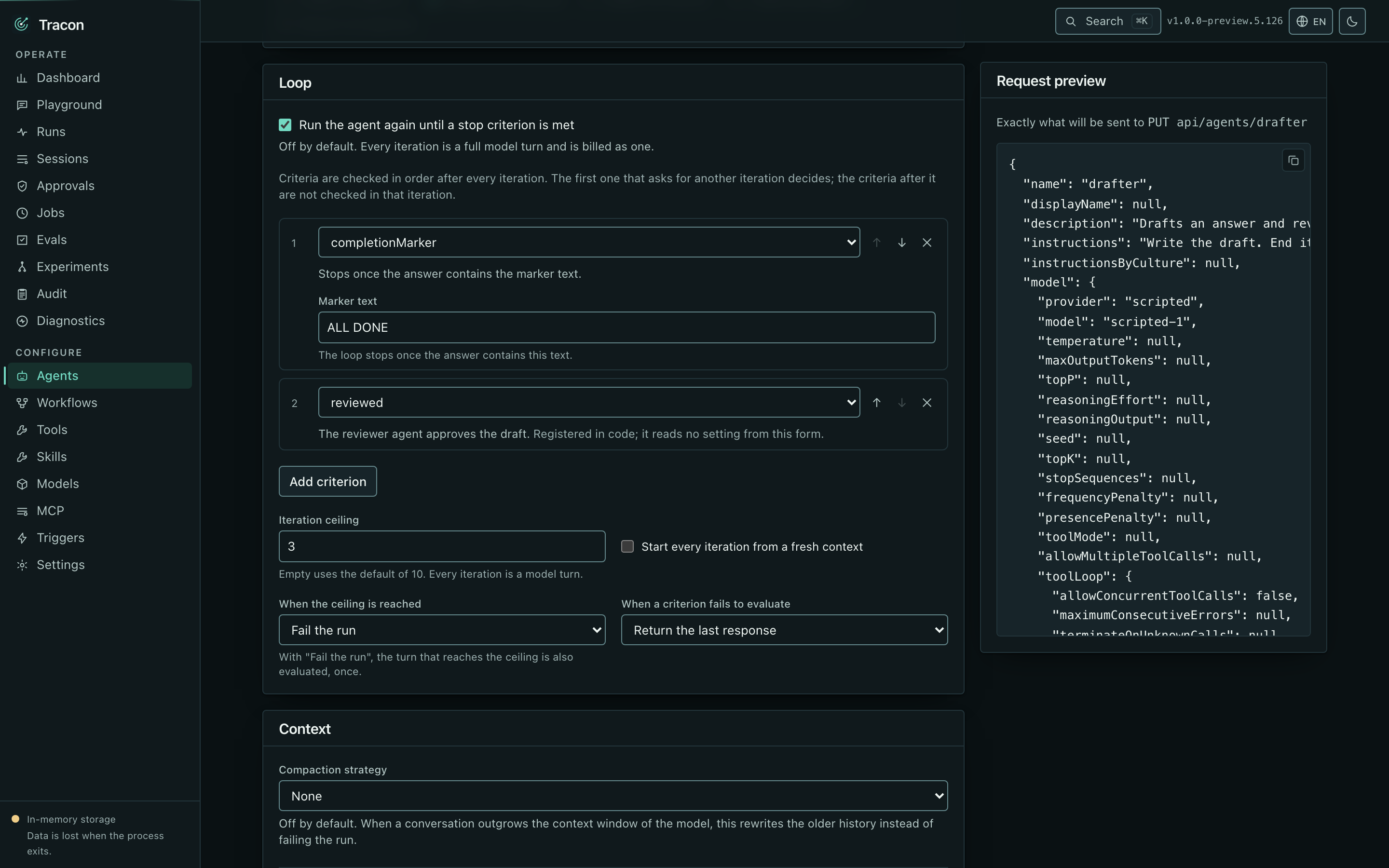 With harness features on, the editor shows a **Loop** panel for the agent's
[run-until-done loop](/concepts/agents/#run-until-the-work-is-done). It adds,
removes and reorders criteria, and sets the iteration ceiling, the fresh context
switch and the two outcomes. The kind list comes from the host: the five
built-in kinds and every kind registered in code, with its description. An
`aiJudge` criterion shows the host's judge model, or says that none is
configured. An `agentReview` criterion shows a list of the catalog's agents, without
the agent being edited, and a field for the reviewer's version. A few things the
panel does on purpose:
- A kind the host does not list stays in the definition, marked **Not
registered**. It also stays when the list cannot load.
- A reviewer the agent list does not carry stays selected as written, and the panel
says it is not in the catalog. **Validate** reports one that does not exist.
- Changing a criterion's kind clears the fields the new kind does not read.
Opening and saving a definition keeps every field as it is.
- Turning harness features off drops the loop from the request, and the harness
panel says so before you save.
- **Validate** reports each loop problem with its code and the path of the field,
for example `harness.loop.criteria[1].marker`.
- The version diff shows the loop as its own table, so a changed ceiling or
criterion is highlighted.
The instructions panel also holds a culture-keyed section: add a culture tag
(`tr`, `de`, ...) with its own instructions text, and a run requesting that
culture picks it up (see [Culture-keyed instructions](/concepts/agents/#culture-keyed-instructions)).
The version diff screen shows each culture's text as its own section.
## Playground
With harness features on, the editor shows a **Loop** panel for the agent's
[run-until-done loop](/concepts/agents/#run-until-the-work-is-done). It adds,
removes and reorders criteria, and sets the iteration ceiling, the fresh context
switch and the two outcomes. The kind list comes from the host: the five
built-in kinds and every kind registered in code, with its description. An
`aiJudge` criterion shows the host's judge model, or says that none is
configured. An `agentReview` criterion shows a list of the catalog's agents, without
the agent being edited, and a field for the reviewer's version. A few things the
panel does on purpose:
- A kind the host does not list stays in the definition, marked **Not
registered**. It also stays when the list cannot load.
- A reviewer the agent list does not carry stays selected as written, and the panel
says it is not in the catalog. **Validate** reports one that does not exist.
- Changing a criterion's kind clears the fields the new kind does not read.
Opening and saving a definition keeps every field as it is.
- Turning harness features off drops the loop from the request, and the harness
panel says so before you save.
- **Validate** reports each loop problem with its code and the path of the field,
for example `harness.loop.criteria[1].marker`.
- The version diff shows the loop as its own table, so a changed ceiling or
criterion is highlighted.
The instructions panel also holds a culture-keyed section: add a culture tag
(`tr`, `de`, ...) with its own instructions text, and a run requesting that
culture picks it up (see [Culture-keyed instructions](/concepts/agents/#culture-keyed-instructions)).
The version diff screen shows each culture's text as its own section.
## Playground
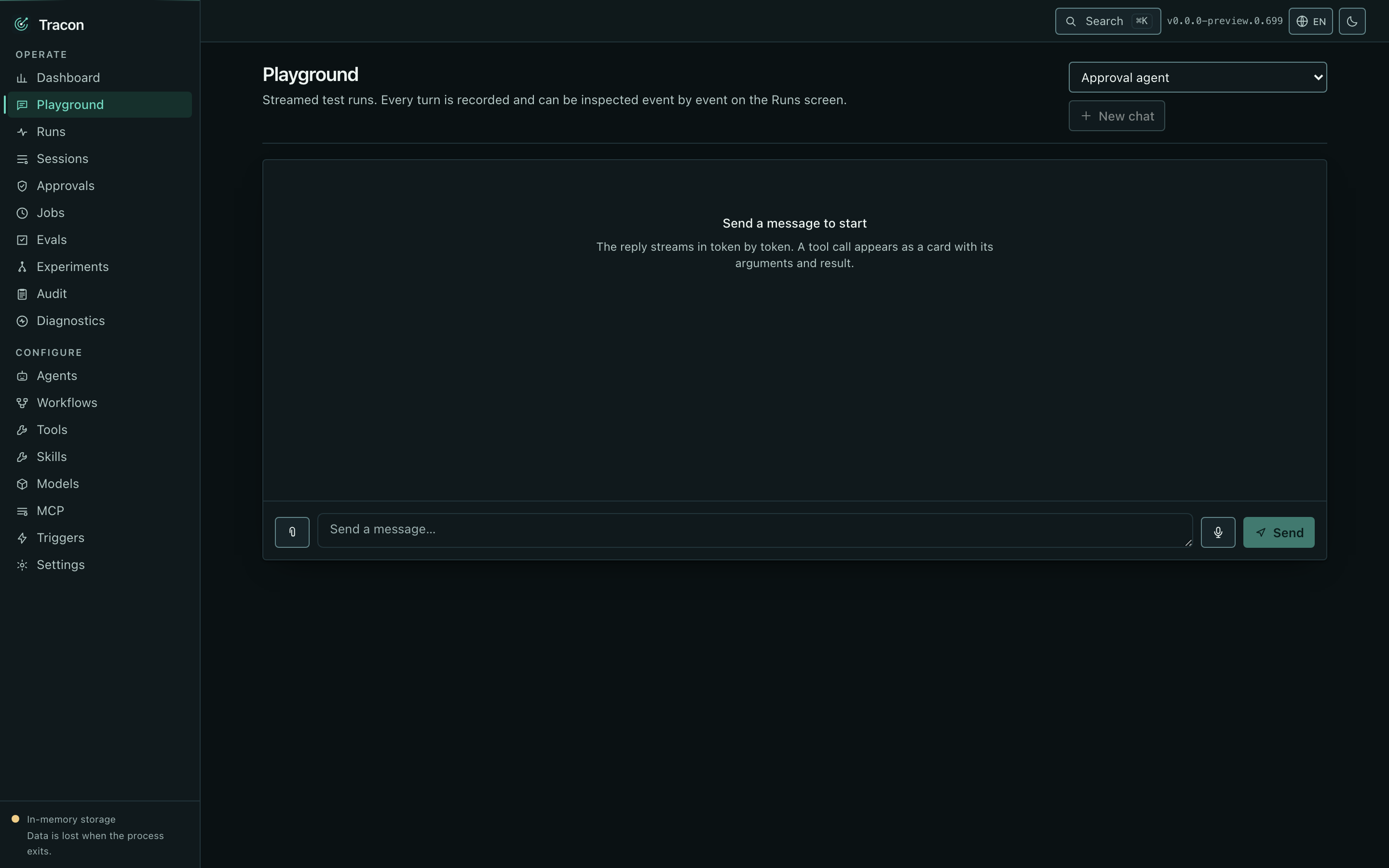 Talk to an agent. The reply streams token by token and tool calls appear as cards with
their arguments and their results, so you can see *why* an answer came out the way it
did rather than just reading the answer.
Attachments can be added to a message, and with the voice layer enabled there is a
live conversation mode.
When the selected agent declares a parameter schema, the playground renders a form
for it above the message box — one field per parameter, generated from the schema.
The Run button is disabled while a required field is empty; this is the same rule
the server enforces (a run with a missing required value never starts), surfaced
before the round trip instead of after it.
When the agent runs a [loop](/concepts/agents/#run-until-the-work-is-done), the reply
holds every iteration. The playground draws a divider after each iteration the loop
evaluated. The divider names the iteration and what the loop decided: another iteration
and the criterion that asked for it, the iteration ceiling, a criterion that failed to
evaluate, or a stop. The feedback text is not in the divider.
A tool call that needs a human decision stops the stream and renders as an approval
card instead of a result — the entity name and message from a registered
[approval presenter](/concepts/governance/#approvals) when there is one, the raw
call arguments otherwise. Approving or rejecting resumes the run as a new turn.
An MCP server can also ask the user for information in the middle of a tool call. The
stream stops and the playground renders an input card: the server's question, one field
for each value it asks for (text, number, yes or no, or a choice), and a note that says
which server the answer goes to. Send answers as a new turn and the tool call runs again
with the values. Decline and Dismiss answer the server with a refusal. A required field
that is empty keeps Send disabled. See
[A server asks the user for input](/concepts/tools/#a-server-asks-the-user-for-input).
## Runs
Talk to an agent. The reply streams token by token and tool calls appear as cards with
their arguments and their results, so you can see *why* an answer came out the way it
did rather than just reading the answer.
Attachments can be added to a message, and with the voice layer enabled there is a
live conversation mode.
When the selected agent declares a parameter schema, the playground renders a form
for it above the message box — one field per parameter, generated from the schema.
The Run button is disabled while a required field is empty; this is the same rule
the server enforces (a run with a missing required value never starts), surfaced
before the round trip instead of after it.
When the agent runs a [loop](/concepts/agents/#run-until-the-work-is-done), the reply
holds every iteration. The playground draws a divider after each iteration the loop
evaluated. The divider names the iteration and what the loop decided: another iteration
and the criterion that asked for it, the iteration ceiling, a criterion that failed to
evaluate, or a stop. The feedback text is not in the divider.
A tool call that needs a human decision stops the stream and renders as an approval
card instead of a result — the entity name and message from a registered
[approval presenter](/concepts/governance/#approvals) when there is one, the raw
call arguments otherwise. Approving or rejecting resumes the run as a new turn.
An MCP server can also ask the user for information in the middle of a tool call. The
stream stops and the playground renders an input card: the server's question, one field
for each value it asks for (text, number, yes or no, or a choice), and a note that says
which server the answer goes to. Send answers as a new turn and the tool call runs again
with the values. Decline and Dismiss answer the server with a refusal. A required field
that is empty keeps Send disabled. See
[A server asks the user for input](/concepts/tools/#a-server-asks-the-user-for-input).
## Runs
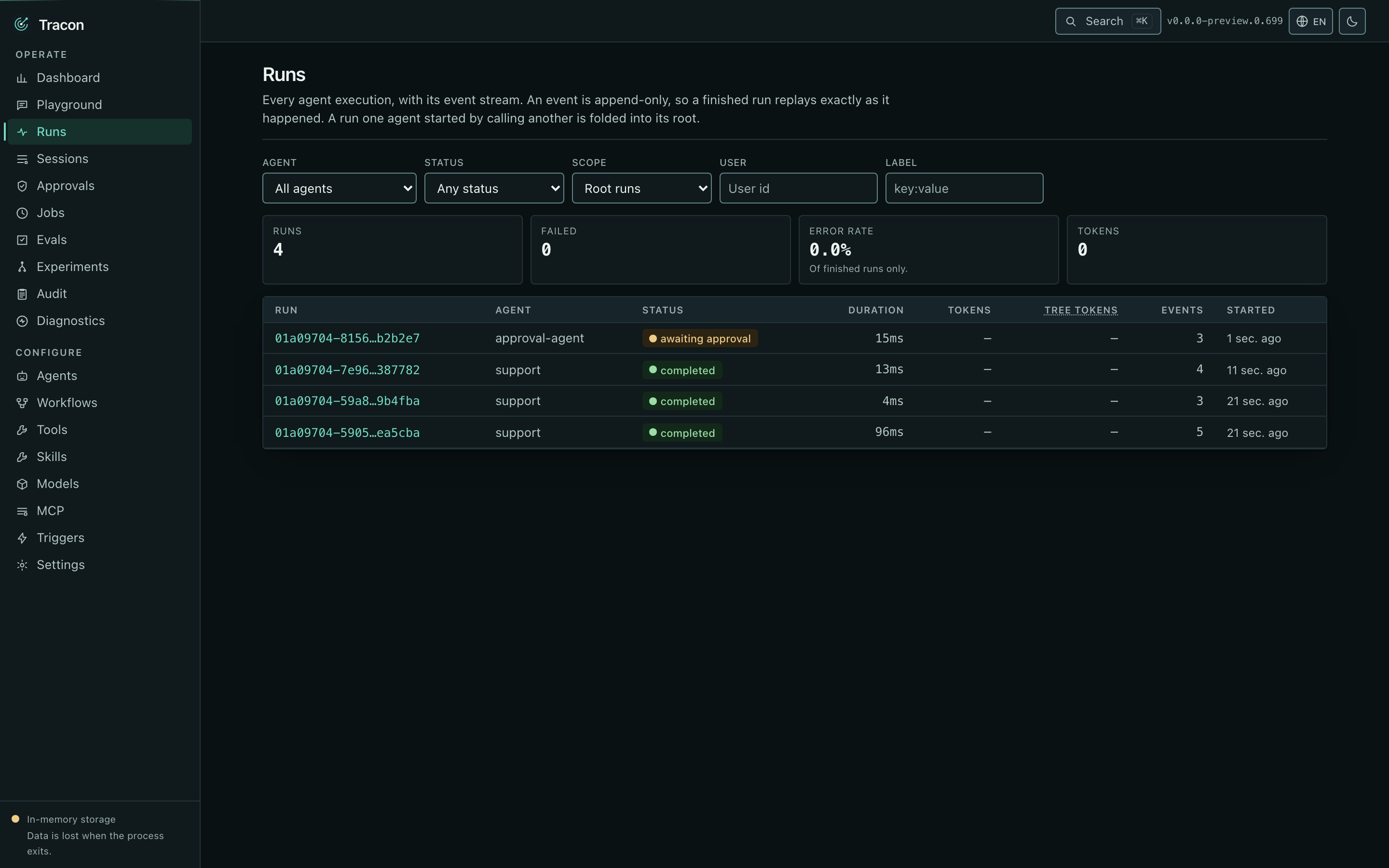 Every execution, filterable by agent, status, and kind — and, once your application
binds `IRunAttributionContext`, by **user** and by **label** (`key:value`, or a bare
key to match any value of it). Only root runs are shown by default — otherwise a
single question that fanned out to four agents would fill the list with rows nobody
started.
A run's detail header names the user it belongs to and shows its labels as badges.
Opening a run gives the summary and the full event stream in order: message deltas,
tool calls with arguments and results, errors with their class. The summary names
the provider that actually answered, next to the model, and — when pricing is
configured — the unit price applied for input, output, and any cached input; that
price is a snapshot of what was in effect when the run ended, unaffected by a later
catalog or configuration change. A run priced at more than one model — a
summarizer or a loop judge on a model of its own — shows `—` there, because one
rate cannot describe its cost. When a reasoning
model's thinking is recorded, it renders as its own collapsible block, separate from
the answer. A run that called other agents shows the whole tree, and each agent's
tokens and duration are attributed separately. A sub-agent call that passed its
wait limit shows a distinct timeline entry naming which layer cut it — see
[Agents calling agents](/concepts/agents/#agents-calling-agents). A tool that writes its own custom
event — see [Writing your own event](/concepts/runs/#writing-your-own-event) —
renders as a generic card named after that event's own type, with no console
change required to show up.
What a run spent that is not tokens appears in two places. A tool call's row shows the
measurement the tool reported: the quantity and its unit, the amount (or **unpriced**
when none was reported, which means unknown, not free), an **estimated** badge when the
quantity rests on an estimate, and the provider and model that did the work. A finished run
that reported anything also gets a **Non-token usage** panel: one row per item a workflow
function node reported, with the node's name and the same measurement line, ending in
**Reported in this run** and, on a root with runs below it, **Reported in the whole tree**.
A badge such as **1 not added** counts the items left out of the total because they carry no
amount or are in another currency than the configured one. A run that reported nothing
shows no panel. See
[Report what a node spent beyond tokens](/concepts/workflow-function-nodes/#report-what-a-node-spent-beyond-tokens)
for what adds up and what does not.
Two runs can be compared side by side, and any run can be scored. The thumbs on the
run screen write one named score — `overall` — as the person looking at it. Every
other score on that run, whether a second name someone wrote through the API or one
an automatic judge produced, is listed beside them read-only, with its name and its
value.
A run that continues one interrupted by a process crash names the run it continues,
right next to the session and parent-run links, as a clickable id that opens the
source run.
## Sessions
Every execution, filterable by agent, status, and kind — and, once your application
binds `IRunAttributionContext`, by **user** and by **label** (`key:value`, or a bare
key to match any value of it). Only root runs are shown by default — otherwise a
single question that fanned out to four agents would fill the list with rows nobody
started.
A run's detail header names the user it belongs to and shows its labels as badges.
Opening a run gives the summary and the full event stream in order: message deltas,
tool calls with arguments and results, errors with their class. The summary names
the provider that actually answered, next to the model, and — when pricing is
configured — the unit price applied for input, output, and any cached input; that
price is a snapshot of what was in effect when the run ended, unaffected by a later
catalog or configuration change. A run priced at more than one model — a
summarizer or a loop judge on a model of its own — shows `—` there, because one
rate cannot describe its cost. When a reasoning
model's thinking is recorded, it renders as its own collapsible block, separate from
the answer. A run that called other agents shows the whole tree, and each agent's
tokens and duration are attributed separately. A sub-agent call that passed its
wait limit shows a distinct timeline entry naming which layer cut it — see
[Agents calling agents](/concepts/agents/#agents-calling-agents). A tool that writes its own custom
event — see [Writing your own event](/concepts/runs/#writing-your-own-event) —
renders as a generic card named after that event's own type, with no console
change required to show up.
What a run spent that is not tokens appears in two places. A tool call's row shows the
measurement the tool reported: the quantity and its unit, the amount (or **unpriced**
when none was reported, which means unknown, not free), an **estimated** badge when the
quantity rests on an estimate, and the provider and model that did the work. A finished run
that reported anything also gets a **Non-token usage** panel: one row per item a workflow
function node reported, with the node's name and the same measurement line, ending in
**Reported in this run** and, on a root with runs below it, **Reported in the whole tree**.
A badge such as **1 not added** counts the items left out of the total because they carry no
amount or are in another currency than the configured one. A run that reported nothing
shows no panel. See
[Report what a node spent beyond tokens](/concepts/workflow-function-nodes/#report-what-a-node-spent-beyond-tokens)
for what adds up and what does not.
Two runs can be compared side by side, and any run can be scored. The thumbs on the
run screen write one named score — `overall` — as the person looking at it. Every
other score on that run, whether a second name someone wrote through the API or one
an automatic judge produced, is listed beside them read-only, with its name and its
value.
A run that continues one interrupted by a process crash names the run it continues,
right next to the session and parent-run links, as a clickable id that opens the
source run.
## Sessions
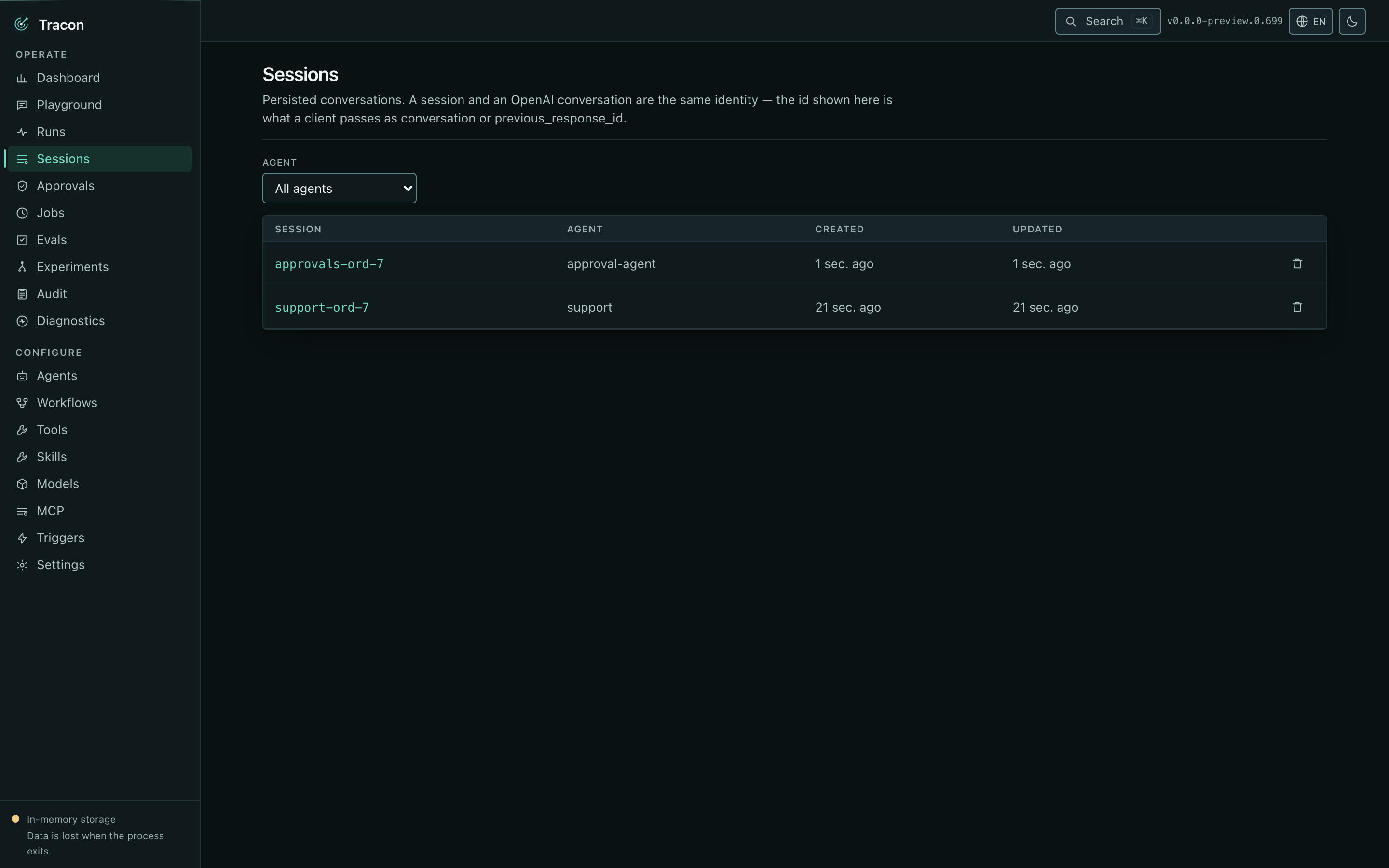 A session is a durable conversation. The list shows every session the active store
knows about, with its agent, message count, and last activity; opening one reads the
conversation back turn by turn, exactly as the model saw it.
Two things are only visible here. A session can be **branched** from any addressable
item, which forks the conversation without touching the original — the fork opens as
a new session with its own id. And attachments referenced by a message are listed with
their type and size, so you can see what actually reached the provider.
In-memory storage keeps sessions only for the life of the process. Reading a
conversation back, and branching it, need a SQL store.
## Jobs
A session is a durable conversation. The list shows every session the active store
knows about, with its agent, message count, and last activity; opening one reads the
conversation back turn by turn, exactly as the model saw it.
Two things are only visible here. A session can be **branched** from any addressable
item, which forks the conversation without touching the original — the fork opens as
a new session with its own id. And attachments referenced by a message are listed with
their type and size, so you can see what actually reached the provider.
In-memory storage keeps sessions only for the life of the process. Reading a
conversation back, and branching it, need a SQL store.
## Jobs
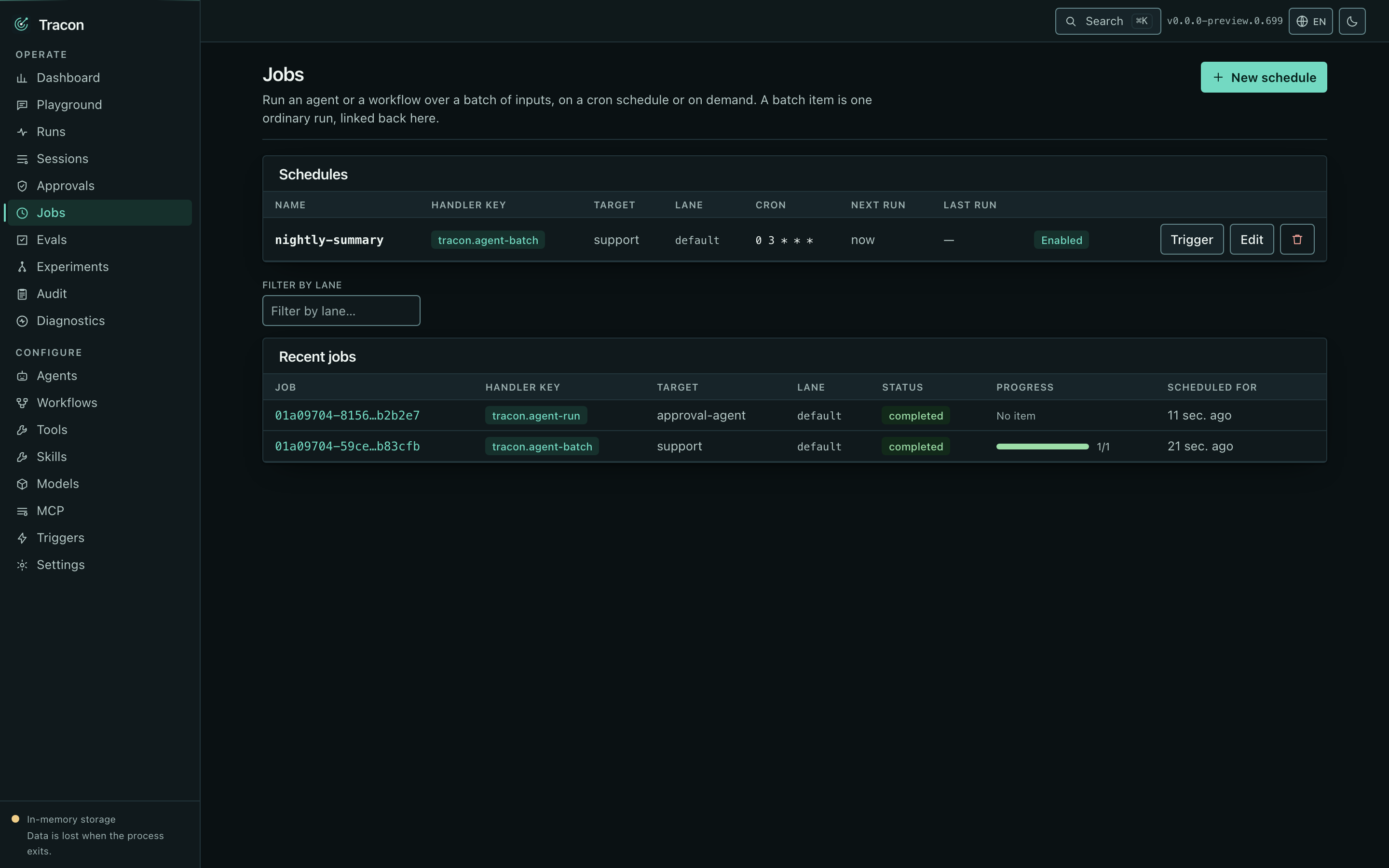 Everything Tracon runs in the background, in one queue: queued agent runs,
scheduled runs, workflow executions, evaluation runs, online-evaluation scoring, and
webhook deliveries. Each row carries its handler key, status, attempt count, and —
for a failure — the classified error. The handler key is what decides which code
runs the job, so it is also the most useful thing to filter the queue by.
Schedules live on the same screen. A schedule is a cron expression, a handler key,
and the payload to run; leaving the expression empty makes it manual-only, which is
the honest way to park one. Triggering a schedule by hand queues exactly the job the
timer would have. The handler dropdown lists only the keys this server accepts over
HTTP, so a schedule the form lets you save is one the server will take.
Every job and schedule shows its lane — a plain text tag that keeps unrelated kinds
of work from blocking each other in the same queue. Filter the job list by lane to
find work a worker is not currently scoped to pick up.
The queue drains in any process whose worker is running. That is the default:
`TraconSchedulingOptions.Enabled` and `RunWorker` are both `true`, so calling
`UseScheduling()` is about configuring the worker, not switching it on. A queue
that never moves is almost always a deployment where every process sets
`RunWorker` to `false` — see [Jobs, schedules, and queues](/guides/background-work/).
## Workflows
Everything Tracon runs in the background, in one queue: queued agent runs,
scheduled runs, workflow executions, evaluation runs, online-evaluation scoring, and
webhook deliveries. Each row carries its handler key, status, attempt count, and —
for a failure — the classified error. The handler key is what decides which code
runs the job, so it is also the most useful thing to filter the queue by.
Schedules live on the same screen. A schedule is a cron expression, a handler key,
and the payload to run; leaving the expression empty makes it manual-only, which is
the honest way to park one. Triggering a schedule by hand queues exactly the job the
timer would have. The handler dropdown lists only the keys this server accepts over
HTTP, so a schedule the form lets you save is one the server will take.
Every job and schedule shows its lane — a plain text tag that keeps unrelated kinds
of work from blocking each other in the same queue. Filter the job list by lane to
find work a worker is not currently scoped to pick up.
The queue drains in any process whose worker is running. That is the default:
`TraconSchedulingOptions.Enabled` and `RunWorker` are both `true`, so calling
`UseScheduling()` is about configuring the worker, not switching it on. A queue
that never moves is almost always a deployment where every process sets
`RunWorker` to `false` — see [Jobs, schedules, and queues](/guides/background-work/).
## Workflows
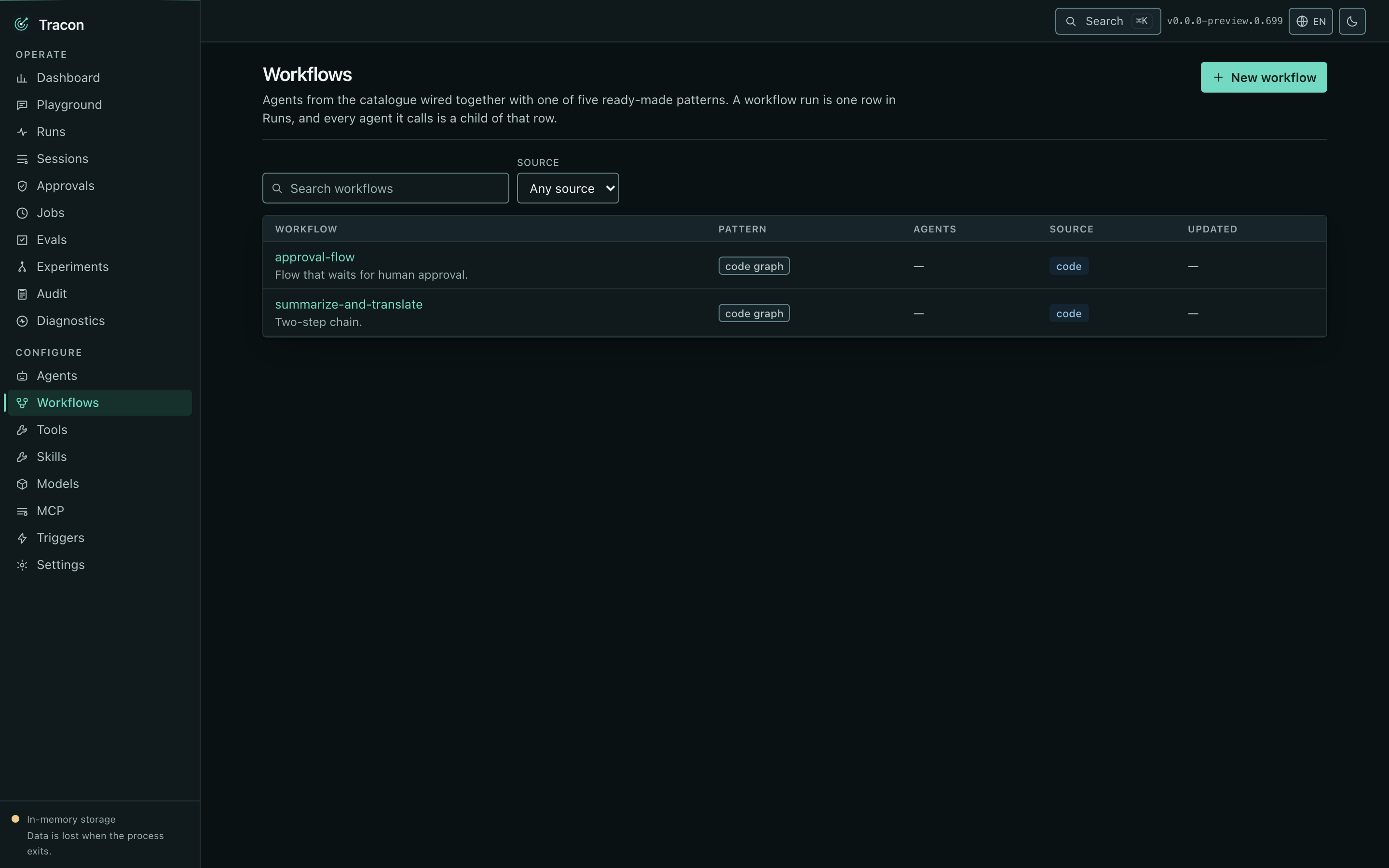 Workflows defined in code and in the database. Opening one draws the compiled graph,
and the node ids are the same executor ids that appear in run events — which is how
nodes light up live while a workflow runs.
When the workflow declares parameters, the run panel renders the same form the
playground does — one field per parameter, Run disabled while a required one is empty —
and sends the values with the message. The editor keeps the schema across a save but does
not change it yet; create or change it with `PUT /api/workflows/{name}`.
When a run waits for a person, a card under the run panel asks for the answer the request
needs: a yes or no, text, JSON, or a plan to approve or send back. A tool call that waits
for approval shows the tool and what your approval presenter says about the call; the card
has **Approve** and **Reject**, a reason the agent reads, and *Do not ask again for this
agent and tool*, which saves a rule when you approve (see [A tool that asks for
approval](/concepts/workflow-answers/#a-tool-that-asks-for-approval)). The tenant-wide list of
waiting requests is the *Workflow requests* panel of the Approvals screen.
Workflows defined in code and in the database. Opening one draws the compiled graph,
and the node ids are the same executor ids that appear in run events — which is how
nodes light up live while a workflow runs.
When the workflow declares parameters, the run panel renders the same form the
playground does — one field per parameter, Run disabled while a required one is empty —
and sends the values with the message. The editor keeps the schema across a save but does
not change it yet; create or change it with `PUT /api/workflows/{name}`.
When a run waits for a person, a card under the run panel asks for the answer the request
needs: a yes or no, text, JSON, or a plan to approve or send back. A tool call that waits
for approval shows the tool and what your approval presenter says about the call; the card
has **Approve** and **Reject**, a reason the agent reads, and *Do not ask again for this
agent and tool*, which saves a rule when you approve (see [A tool that asks for
approval](/concepts/workflow-answers/#a-tool-that-asks-for-approval)). The tenant-wide list of
waiting requests is the *Workflow requests* panel of the Approvals screen.
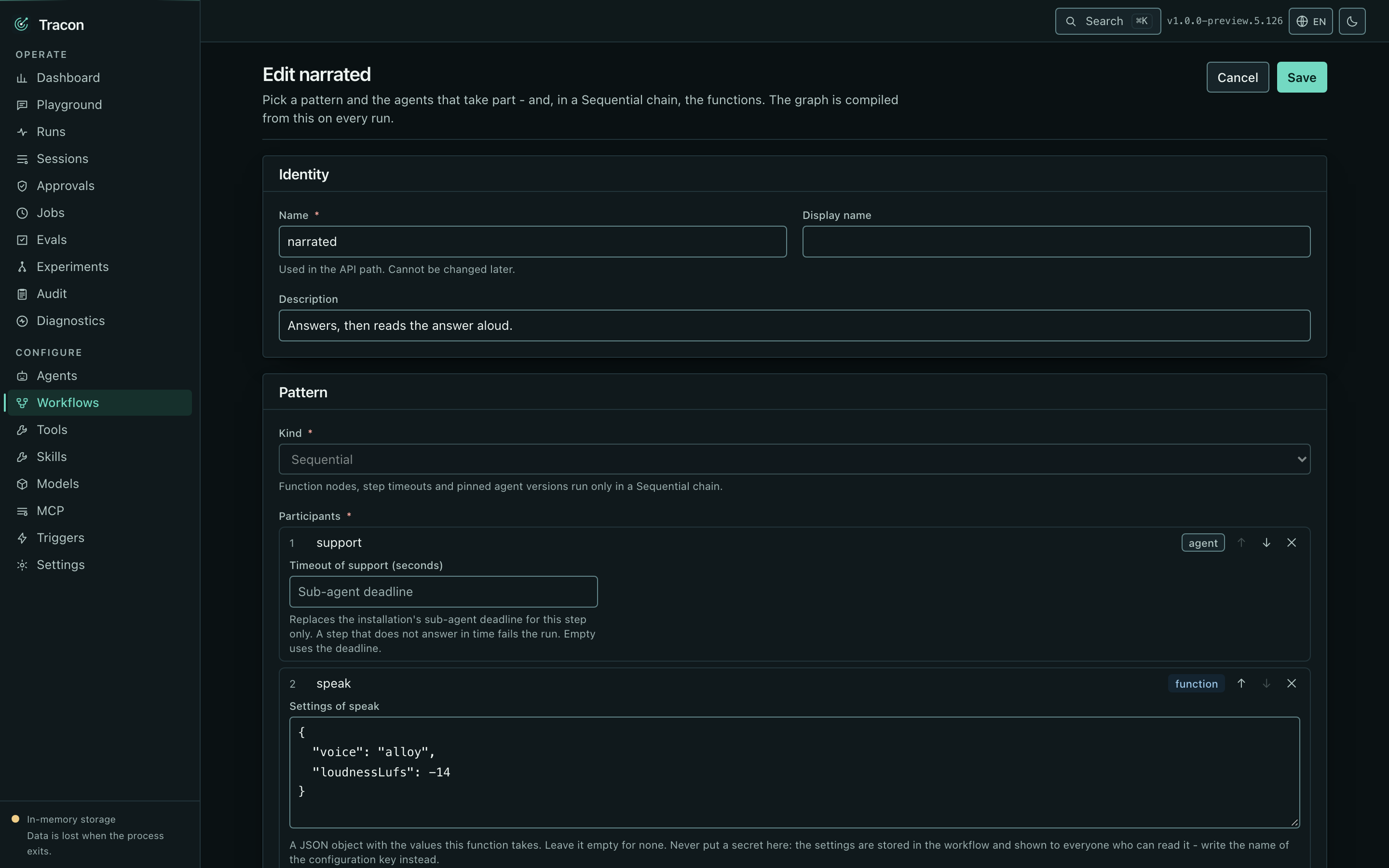 The editor builds the chain. *Add an agent* and *Add a function* pick from the agents in
the catalog and the functions registered in code; the arrows reorder the steps and ✕
removes one. The function picker appears for `Sequential` only, and the pattern stays
`Sequential` while the chain holds a function. A function step has a **Settings** field
that takes the JSON for the function's settings type, with the fields it takes listed
under it. Save is disabled while that text is not JSON; whether the object fits the
function is the server's answer, which names the node and the member and shows above the
form. Settings are stored with the workflow and shown to everyone who can read it, so
the field says not to put a secret there. The server also refuses a chain whose step
cannot take what the step before it passes on (see
[Function nodes](/concepts/workflow-function-nodes/)); that answer names both steps.
An agent step of a stored agent has an **Agent version** field. *Current version* runs the
agent's latest version each time the step runs; picking a version pins the step to it, so
the agent can be edited while the workflow keeps running the text that was tested (see
[Versions, rollback and pinning an agent step](/concepts/workflows/#versions-rollback-and-pinning-an-agent-step)).
The field is absent for an agent defined in code, which keeps no versions, and for every
pattern except `Sequential`. A version the agent no longer lists stays selectable as
*Version N (not found)*, so a save never drops a pin silently; the server's answer says
whether it can still run.
Before a save that changes the chain, the editor says what it is about to do. It stores a
chain that holds a function step or a pinned agent version as a node list and any other
chain as a plain agent list, and tells you when the save changes the form. It also warns
when the pattern, the steps or their order change: a run that is waiting for input keeps
resuming the version it recorded, and resuming it with the new version fails, because its
saved state belongs to the old graph. Editing a step's settings, a timeout, a pinned
version or the description does not change the graph. Pinning the first step of a chain
that was a plain agent list does, because the form changes.
In a chain saved as a node list, each step has a **timeout** field, in seconds (`90`,
`2.5`) or as `hh:mm:ss`. Empty uses the step's default, which the placeholder names: the
timeout the function was registered with, or the installation's sub-agent deadline. A
plain agent list has no node to keep a timeout on, so its steps show no field. If a step
still carries one there — its chain lost its last function step or pin, or it was written
over HTTP — Save stays disabled with a note until you clear it, add a function step or pin
an agent version. The
**Run timeout** field sets the workflow's own run timeout; empty uses the installation's,
and a longer value is accepted only up to `Tracon:Workflows:MaxRunTimeout` (see
[Bound a node with a timeout](/concepts/workflow-function-nodes/#bound-a-node-with-a-timeout)).
A workflow defined in the database also has a **Versions** section on its screen: every
save is a version, with the time it was saved and which one is current. Tick two versions
to compare them (the display name, the description, the pattern, the steps with their pins,
timeouts and settings, the parameters, the run timeout and the answers per request), or press **Rollback** on an
older one. A rollback deletes nothing: it writes that version's content as a new version,
and every run started after it uses the restored definition. A run that is waiting keeps the
version it recorded. A rollback an administrator presses on content that no longer passes the
save checks — a function that is no longer registered, or an agent version that no longer
exists — is refused with the reason and writes nothing. A workflow defined in code has no
Versions section: it has no stored definition.
A workflow waiting on human input shows the pending request as a card; answering it
resumes execution from the checkpoint as a new run. The card opens for any waiting
run, wherever it started — over HTTP, from a job, or in another tab: follow the
**workflow screen** link on its run page, or open `workflows/?runId=`.
The answered run keeps its *awaiting input* status and its request. In the default
mode, answering it a second time starts a separate branch. A request that already has an
answer shows an *answered* badge and a *continued in run* link to the run the answer
started. In a workflow that takes one answer per request, the same answer given again
follows that run, and a different answer is refused: the card says the request was
already answered with a different answer (see
[One answer per request](/concepts/workflow-answers/#one-answer-per-request)). An answer that
does not fit the request — a `Json` request's text that does not read into the port's
type, for example — is refused before anything runs, and the screen shows the server's
reason.
The editor's **One answer per request** switch sets that mode for a stored workflow, and
the version comparison lists it as *Answers per request*. A run started by an answer shows
an *answers a request of run* link in its timeline, back to the run it answered. The
**Answer time limit** field sets how long a request may wait before its run is closed (see
[Workflow requests and time limits](/concepts/workflow-requests/)); the comparison lists it
too, and an empty field means no limit.
## Evals and experiments
The editor builds the chain. *Add an agent* and *Add a function* pick from the agents in
the catalog and the functions registered in code; the arrows reorder the steps and ✕
removes one. The function picker appears for `Sequential` only, and the pattern stays
`Sequential` while the chain holds a function. A function step has a **Settings** field
that takes the JSON for the function's settings type, with the fields it takes listed
under it. Save is disabled while that text is not JSON; whether the object fits the
function is the server's answer, which names the node and the member and shows above the
form. Settings are stored with the workflow and shown to everyone who can read it, so
the field says not to put a secret there. The server also refuses a chain whose step
cannot take what the step before it passes on (see
[Function nodes](/concepts/workflow-function-nodes/)); that answer names both steps.
An agent step of a stored agent has an **Agent version** field. *Current version* runs the
agent's latest version each time the step runs; picking a version pins the step to it, so
the agent can be edited while the workflow keeps running the text that was tested (see
[Versions, rollback and pinning an agent step](/concepts/workflows/#versions-rollback-and-pinning-an-agent-step)).
The field is absent for an agent defined in code, which keeps no versions, and for every
pattern except `Sequential`. A version the agent no longer lists stays selectable as
*Version N (not found)*, so a save never drops a pin silently; the server's answer says
whether it can still run.
Before a save that changes the chain, the editor says what it is about to do. It stores a
chain that holds a function step or a pinned agent version as a node list and any other
chain as a plain agent list, and tells you when the save changes the form. It also warns
when the pattern, the steps or their order change: a run that is waiting for input keeps
resuming the version it recorded, and resuming it with the new version fails, because its
saved state belongs to the old graph. Editing a step's settings, a timeout, a pinned
version or the description does not change the graph. Pinning the first step of a chain
that was a plain agent list does, because the form changes.
In a chain saved as a node list, each step has a **timeout** field, in seconds (`90`,
`2.5`) or as `hh:mm:ss`. Empty uses the step's default, which the placeholder names: the
timeout the function was registered with, or the installation's sub-agent deadline. A
plain agent list has no node to keep a timeout on, so its steps show no field. If a step
still carries one there — its chain lost its last function step or pin, or it was written
over HTTP — Save stays disabled with a note until you clear it, add a function step or pin
an agent version. The
**Run timeout** field sets the workflow's own run timeout; empty uses the installation's,
and a longer value is accepted only up to `Tracon:Workflows:MaxRunTimeout` (see
[Bound a node with a timeout](/concepts/workflow-function-nodes/#bound-a-node-with-a-timeout)).
A workflow defined in the database also has a **Versions** section on its screen: every
save is a version, with the time it was saved and which one is current. Tick two versions
to compare them (the display name, the description, the pattern, the steps with their pins,
timeouts and settings, the parameters, the run timeout and the answers per request), or press **Rollback** on an
older one. A rollback deletes nothing: it writes that version's content as a new version,
and every run started after it uses the restored definition. A run that is waiting keeps the
version it recorded. A rollback an administrator presses on content that no longer passes the
save checks — a function that is no longer registered, or an agent version that no longer
exists — is refused with the reason and writes nothing. A workflow defined in code has no
Versions section: it has no stored definition.
A workflow waiting on human input shows the pending request as a card; answering it
resumes execution from the checkpoint as a new run. The card opens for any waiting
run, wherever it started — over HTTP, from a job, or in another tab: follow the
**workflow screen** link on its run page, or open `workflows/?runId=`.
The answered run keeps its *awaiting input* status and its request. In the default
mode, answering it a second time starts a separate branch. A request that already has an
answer shows an *answered* badge and a *continued in run* link to the run the answer
started. In a workflow that takes one answer per request, the same answer given again
follows that run, and a different answer is refused: the card says the request was
already answered with a different answer (see
[One answer per request](/concepts/workflow-answers/#one-answer-per-request)). An answer that
does not fit the request — a `Json` request's text that does not read into the port's
type, for example — is refused before anything runs, and the screen shows the server's
reason.
The editor's **One answer per request** switch sets that mode for a stored workflow, and
the version comparison lists it as *Answers per request*. A run started by an answer shows
an *answers a request of run* link in its timeline, back to the run it answered. The
**Answer time limit** field sets how long a request may wait before its run is closed (see
[Workflow requests and time limits](/concepts/workflow-requests/)); the comparison lists it
too, and an empty field means no limit.
## Evals and experiments
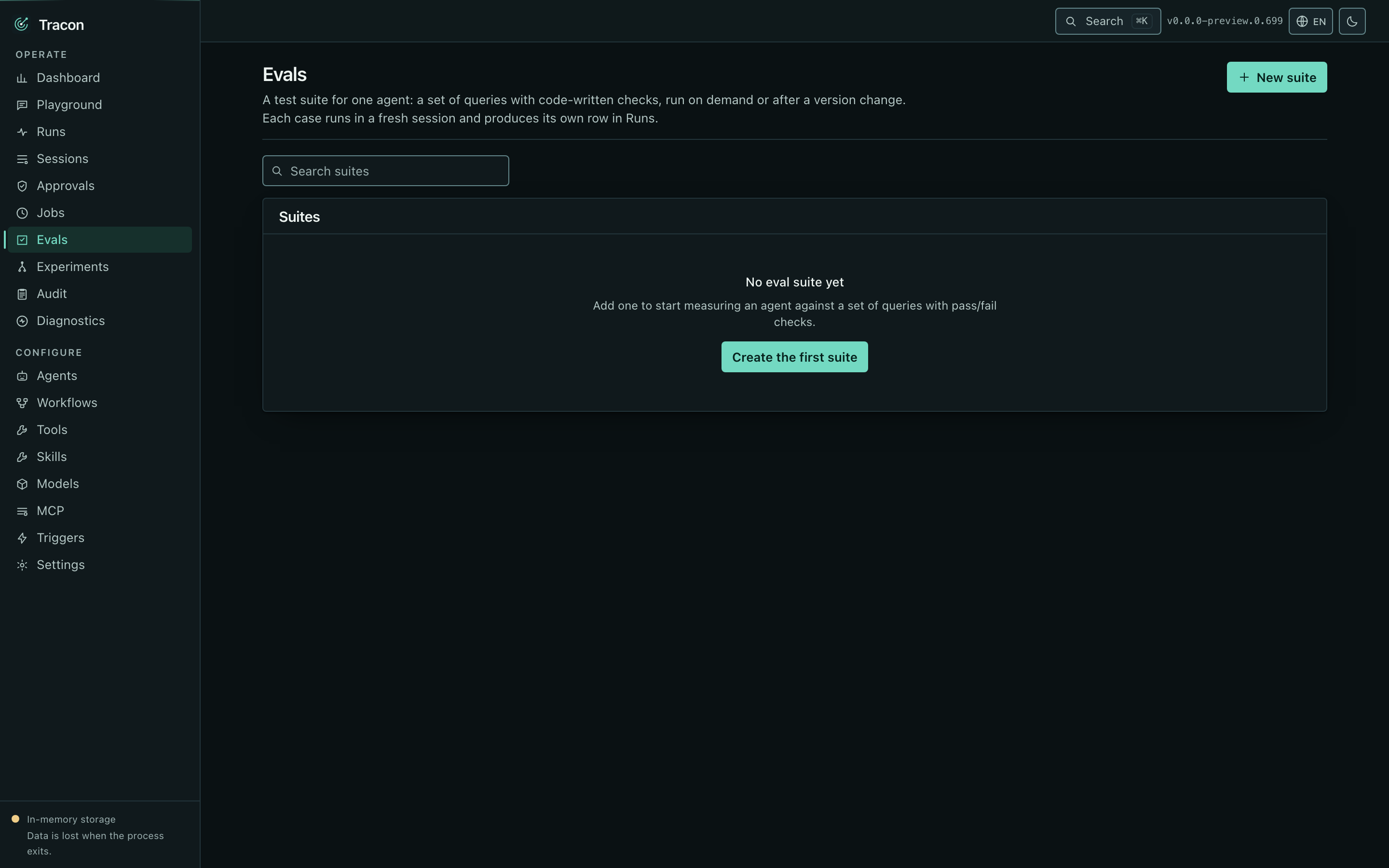 Suites, their cases, and their past runs. A case can be promoted straight from a real
run, which is the fastest path from "this conversation went wrong" to "this is a
regression test". A case lists the tool calls it expects: each call takes a tool name and,
optionally, a JSON object of the arguments it must carry (see
[Checking which tool was called with which arguments](/concepts/evaluation/#checking-which-tool-was-called-with-which-arguments)).
An argument text that is not a JSON object stays marked and the cases cannot be saved
until it is fixed.
Suites, their cases, and their past runs. A case can be promoted straight from a real
run, which is the fastest path from "this conversation went wrong" to "this is a
regression test". A case lists the tool calls it expects: each call takes a tool name and,
optionally, a JSON object of the arguments it must carry (see
[Checking which tool was called with which arguments](/concepts/evaluation/#checking-which-tool-was-called-with-which-arguments)).
An argument text that is not a JSON object stays marked and the cases cannot be saved
until it is fixed.
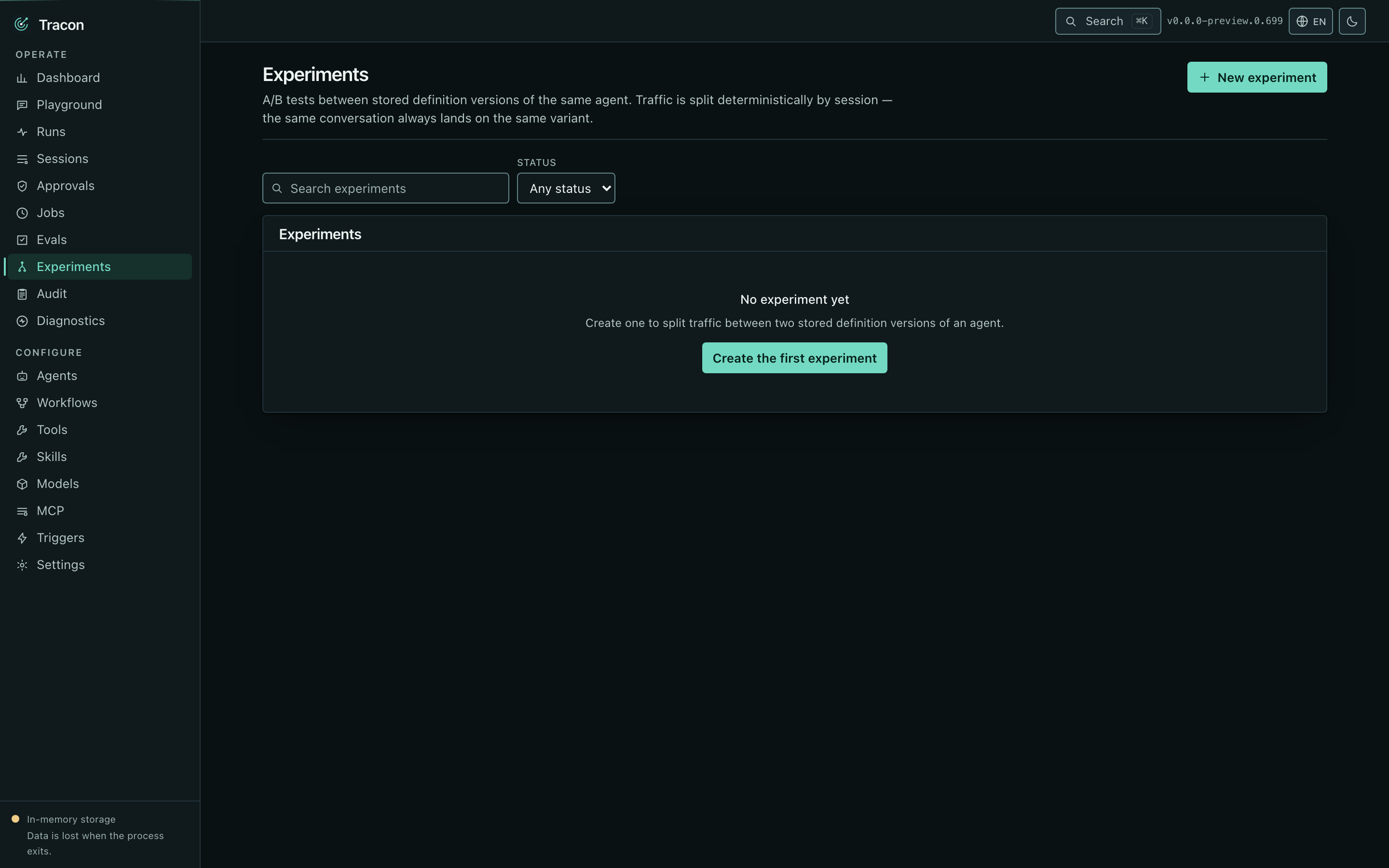 An experiment splits live traffic between two versions of the same agent. The results
show per-arm counts, error rates, tokens, and durations — and make no claim about a
winner. The numbers are yours to judge.
## Approvals
An experiment splits live traffic between two versions of the same agent. The results
show per-arm counts, error rates, tokens, and durations — and make no claim about a
winner. The numbers are yours to judge.
## Approvals
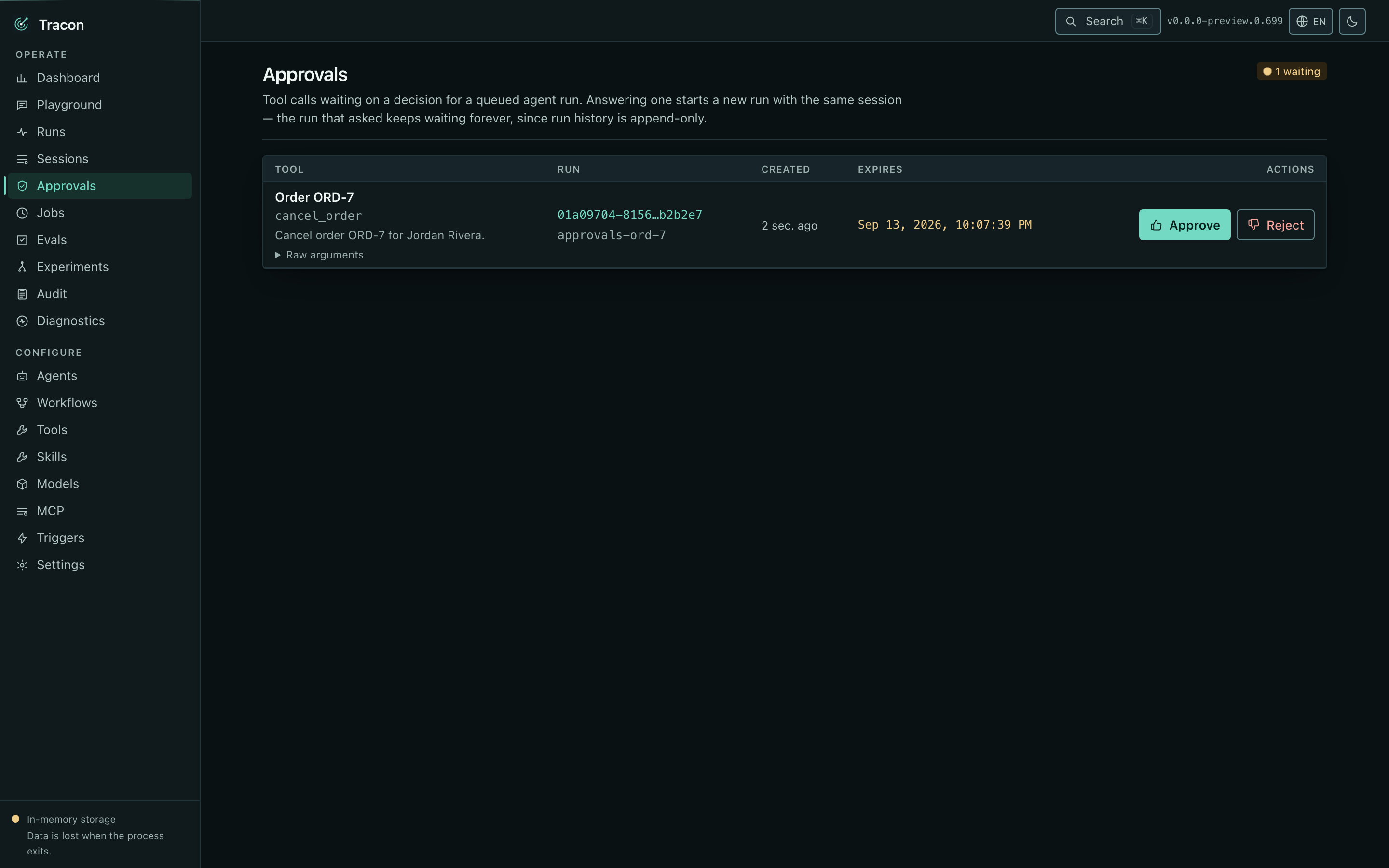 Tool calls waiting on a human, with the arguments as they were recorded and an expiry.
When a registered [approval presenter](/concepts/governance/#approvals) resolves an
entity name and message for the call, the table shows that instead of the raw
arguments; a call the presenter could not resolve still shows the arguments, since
the presenter fails open. Approving or rejecting both resume the run — the model has
to see a result or a refusal and carry on.
Both answers ask once more before they are sent, and the second step spells out what
that answer sets in motion. It is here for a reason particular to approvals: the run
that asked the question never continues under its own id. It stays `AwaitingApproval`
for good and the decision opens a new run, so there is no second request to answer if
the first was answered by accident.
Below the tool calls, a **Workflow requests** panel lists the human requests that the
tenant's workflow runs wait on, across every workflow: the start of the request, when it
was asked, when it expires, and whether it is waiting or already answered. The filters show
the requests that wait for an answer (the default), the answered ones whose run still waits,
or both, for all workflows or one. A row opens the run's card, where the whole request is
read and answered. The panel is a separate record from the tool approvals above it, with its
own filters and its own pages. See [Workflow requests and time
limits](/concepts/workflow-requests/).
Standing "don't ask again" rules live under Governance, where they can be reviewed,
revoked, or written by hand with an argument condition (for example `amount <= 100`)
instead of an exact-argument fingerprint. The condition editor is a closed set of
comparisons, not a free-text expression box.
## Catalog
### Tools
Tool calls waiting on a human, with the arguments as they were recorded and an expiry.
When a registered [approval presenter](/concepts/governance/#approvals) resolves an
entity name and message for the call, the table shows that instead of the raw
arguments; a call the presenter could not resolve still shows the arguments, since
the presenter fails open. Approving or rejecting both resume the run — the model has
to see a result or a refusal and carry on.
Both answers ask once more before they are sent, and the second step spells out what
that answer sets in motion. It is here for a reason particular to approvals: the run
that asked the question never continues under its own id. It stays `AwaitingApproval`
for good and the decision opens a new run, so there is no second request to answer if
the first was answered by accident.
Below the tool calls, a **Workflow requests** panel lists the human requests that the
tenant's workflow runs wait on, across every workflow: the start of the request, when it
was asked, when it expires, and whether it is waiting or already answered. The filters show
the requests that wait for an answer (the default), the answered ones whose run still waits,
or both, for all workflows or one. A row opens the run's card, where the whole request is
read and answered. The panel is a separate record from the tool approvals above it, with its
own filters and its own pages. See [Workflow requests and time
limits](/concepts/workflow-requests/).
Standing "don't ask again" rules live under Governance, where they can be reviewed,
revoked, or written by hand with an argument condition (for example `amount <= 100`)
instead of an exact-argument fingerprint. The condition editor is a closed set of
comparisons, not a free-text expression box.
## Catalog
### Tools
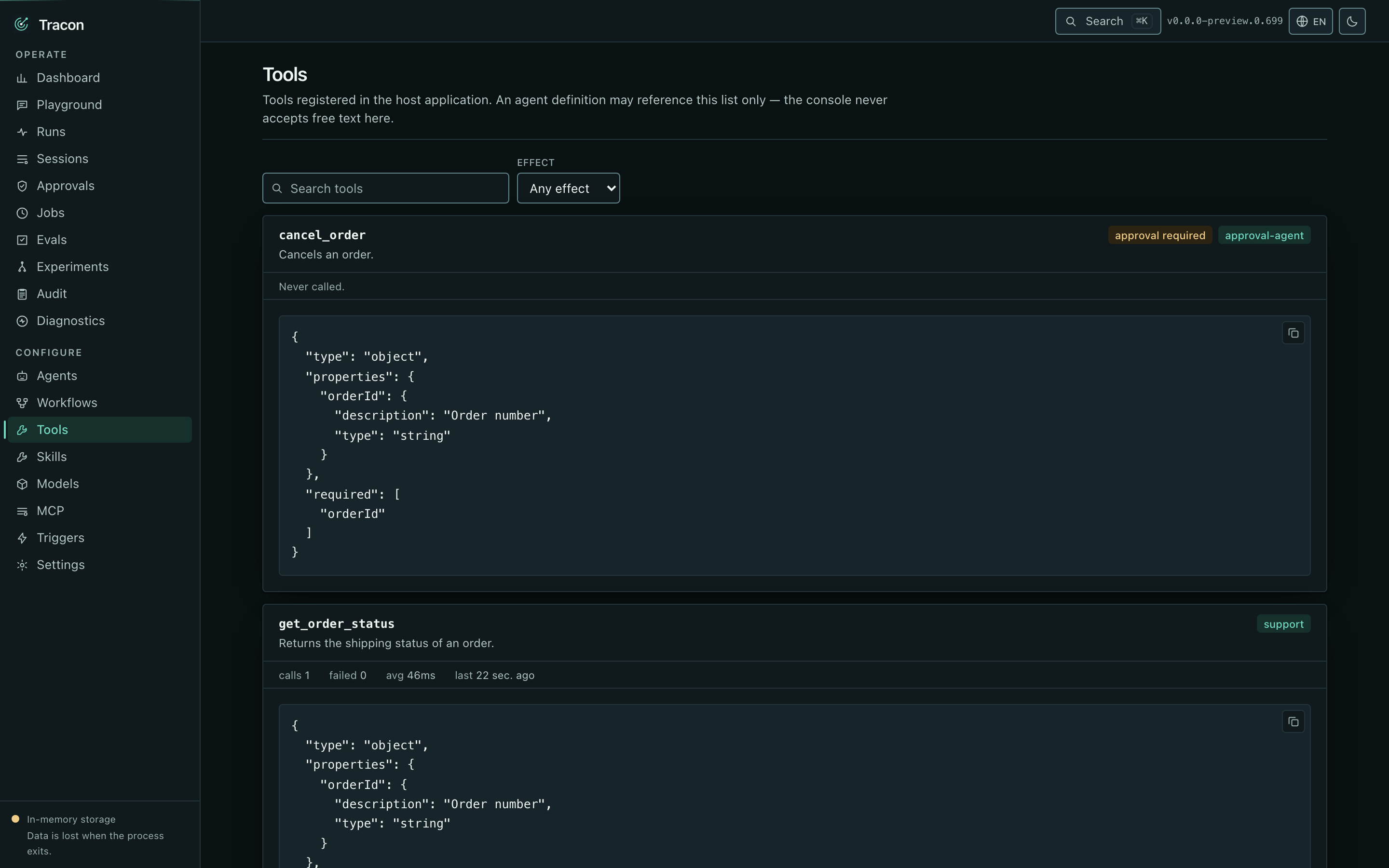 Tools with their generated JSON schemas — read-only, and permanently so. This screen
is where the code-only rule is most visible: you can see every tool an agent may use,
and there is no way to add one from here. A tool registered with `AddClientTool(...)`
carries a "client-side" badge: its declaration is still code-only, but its body runs
on the caller instead of the server. See
[Client-side tools and the embeddable widget](/guides/client-side-tools/).
A destructive tool carries a red badge, one that sends data outside the process an
orange one, and a tool with a declared permission or a non-default timeout shows both
next to it — see [Tools: authorization and timeout](/concepts/tools/#authorization-validation-and-timeout).
### Skills
Tools with their generated JSON schemas — read-only, and permanently so. This screen
is where the code-only rule is most visible: you can see every tool an agent may use,
and there is no way to add one from here. A tool registered with `AddClientTool(...)`
carries a "client-side" badge: its declaration is still code-only, but its body runs
on the caller instead of the server. See
[Client-side tools and the embeddable widget](/guides/client-side-tools/).
A destructive tool carries a red badge, one that sends data outside the process an
orange one, and a tool with a declared permission or a non-default timeout shows both
next to it — see [Tools: authorization and timeout](/concepts/tools/#authorization-validation-and-timeout).
### Skills
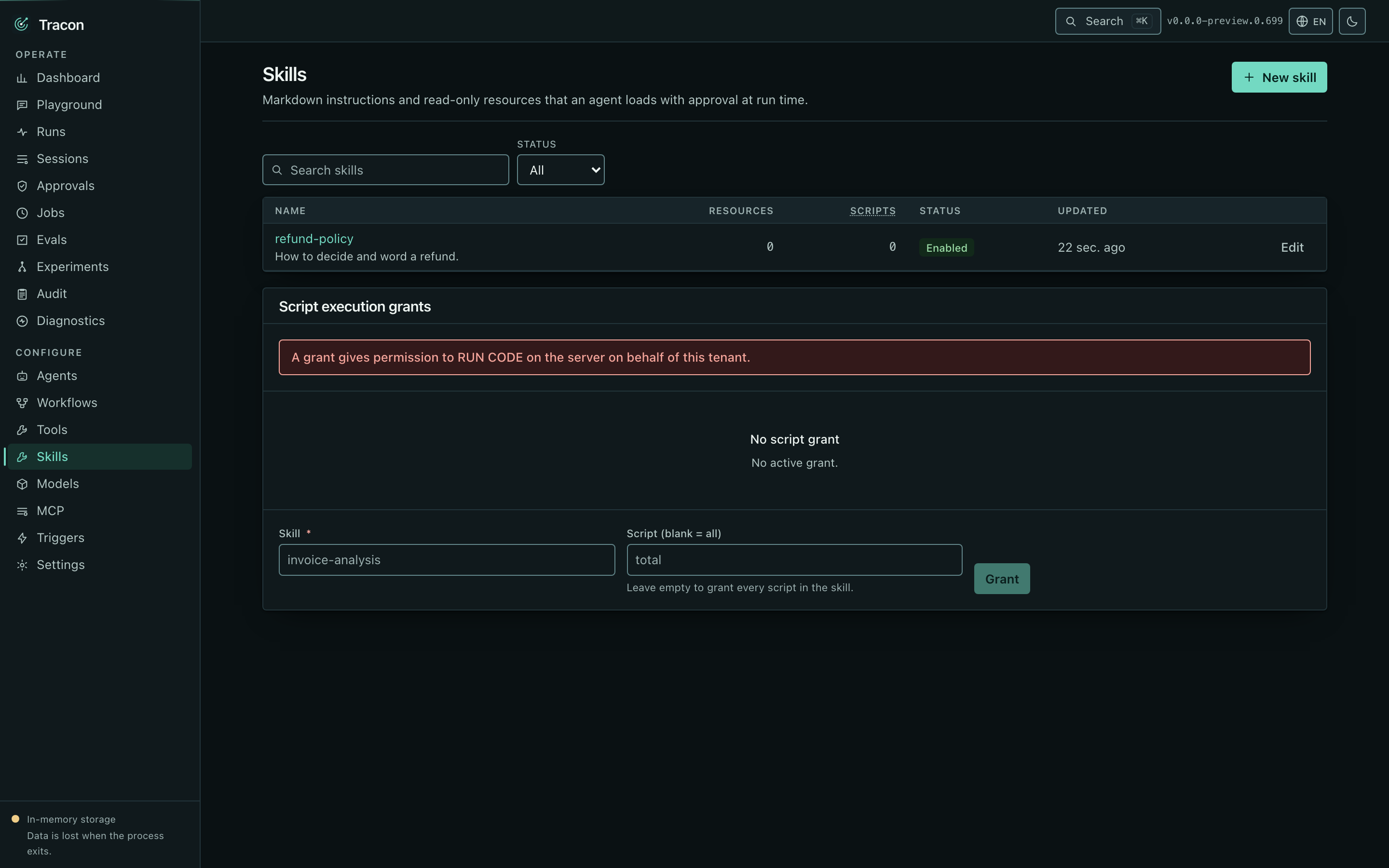 Skills sit beside the tools. A skill is markdown instructions plus read-only resources
that an agent loads at run time, with approval. The editor shows the frontmatter, the
compatibility and license fields, the allowed-tool list, and the resources; the
markdown is stored as source text and the console does not render it.
This is the second place the code-only boundary is visible. A skill may carry
**scripts**, and the editor writes their content, but saving a script never lets it
run. The script grants panel below the list is where an administrator allows one: the
form shows the content that will run — the script, its argument schema, and the hash
— and grants exactly that content. A grant whose content changed afterwards is marked
stale, and its scripts do not run until it is granted again. A skill registered in code
opens read only: it is the one that runs, and the console cannot change it.
### Models
Skills sit beside the tools. A skill is markdown instructions plus read-only resources
that an agent loads at run time, with approval. The editor shows the frontmatter, the
compatibility and license fields, the allowed-tool list, and the resources; the
markdown is stored as source text and the console does not render it.
This is the second place the code-only boundary is visible. A skill may carry
**scripts**, and the editor writes their content, but saving a script never lets it
run. The script grants panel below the list is where an administrator allows one: the
form shows the content that will run — the script, its argument schema, and the hash
— and grants exactly that content. A grant whose content changed afterwards is marked
stale, and its scripts do not run until it is granted again. A skill registered in code
opens read only: it is the one that runs, and the console cannot change it.
### Models
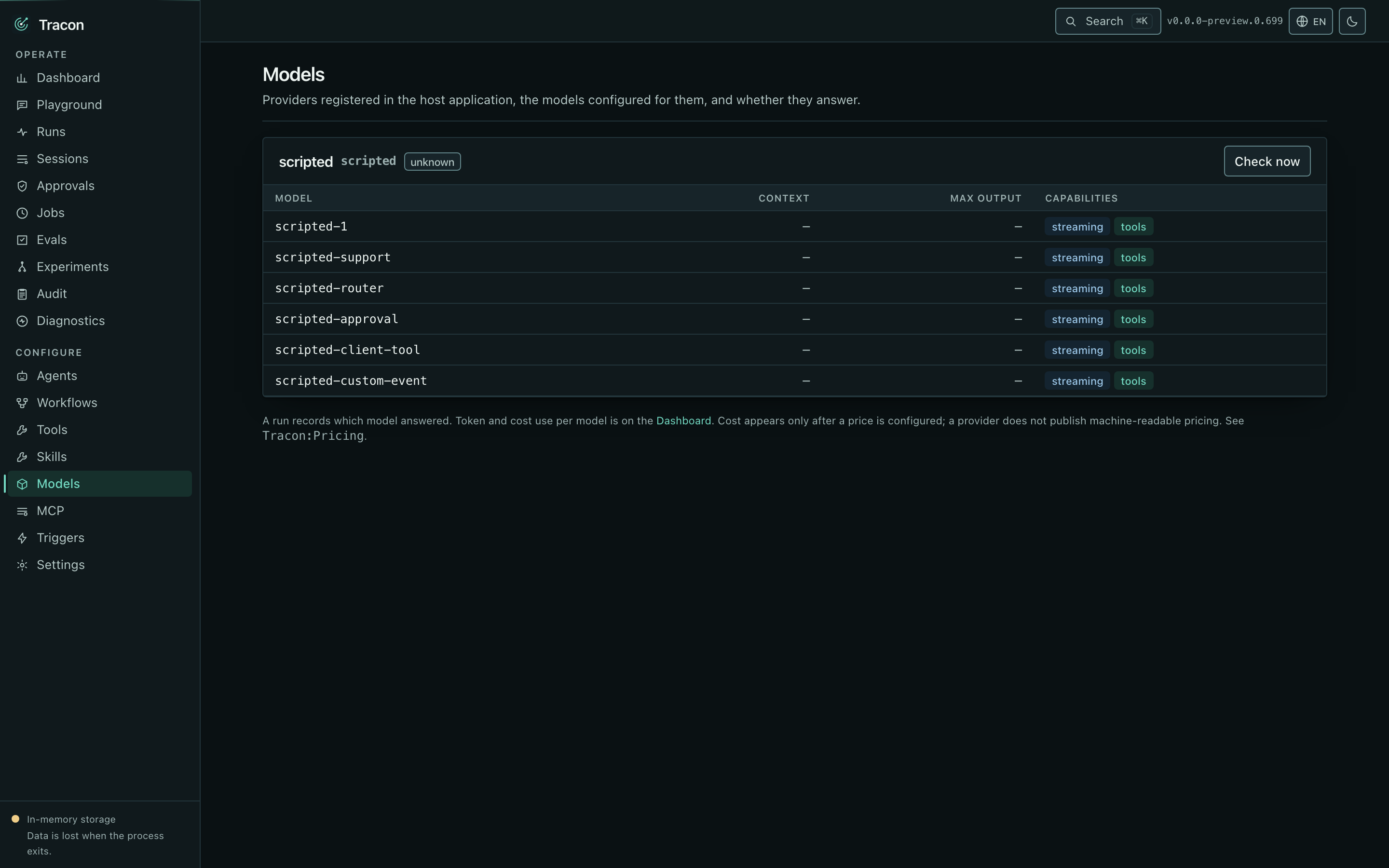 Providers and their configured models, with a health status served from cache.
A provider that implements no health check reports `Unknown`, which is not an error.
### MCP
Providers and their configured models, with a health status served from cache.
A provider that implements no health check reports `Unknown`, which is not an error.
### MCP
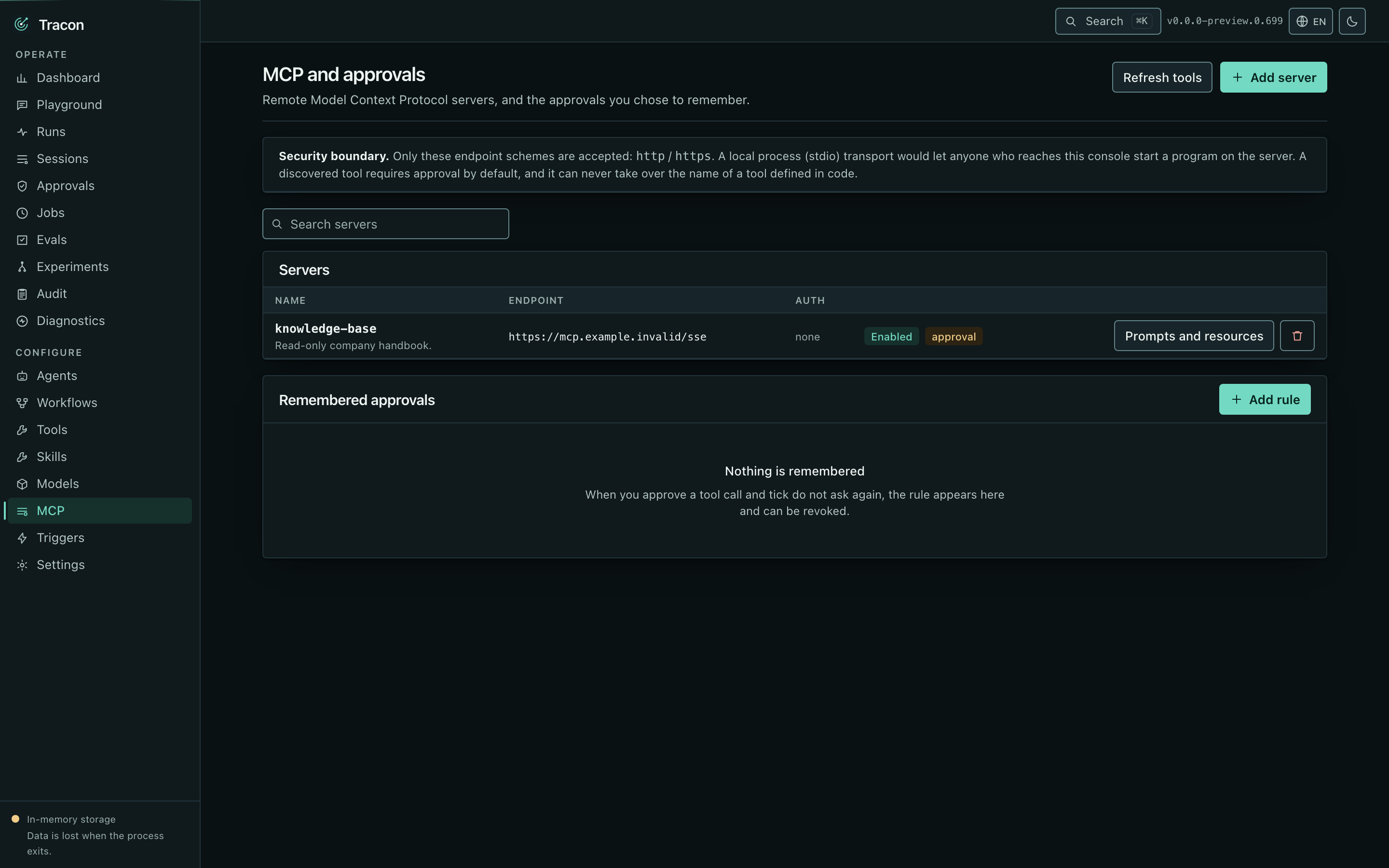 Remote MCP servers and the tools discovered from each. A server is a definition — an
endpoint, a transport, and the name of the configuration key its `Authorization` header
is read from (saved as `headerConfigurationKeys.Authorization`) — so the console never
holds a credential. Discovered tools carry the same
approval badges as code-defined ones, and refreshing a server re-reads its catalog
without a restart.
## Governance
### Audit
Remote MCP servers and the tools discovered from each. A server is a definition — an
endpoint, a transport, and the name of the configuration key its `Authorization` header
is read from (saved as `headerConfigurationKeys.Authorization`) — so the console never
holds a credential. Discovered tools carry the same
approval badges as code-defined ones, and refreshing a server re-reads its catalog
without a restart.
## Governance
### Audit
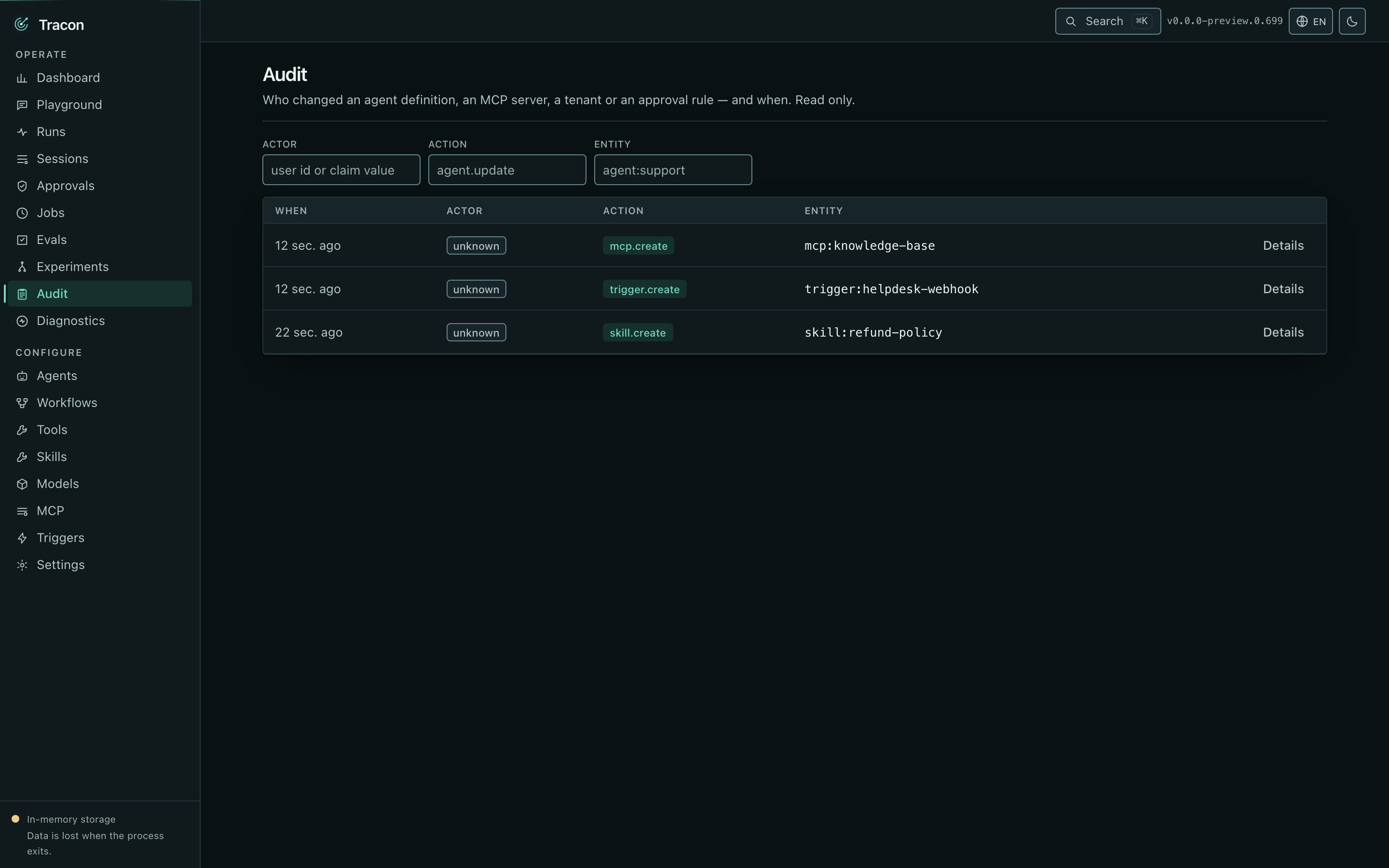 Who changed what, when, and from what to what — filterable by actor, action, entity,
and date range. Secret-looking fields are masked before anything is stored.
Quotas, retention policies, API keys, tenants, and tenant provider bindings and egress
policy (BYOK) have their own screens in the same area. The provider choices there are
the model providers and the speech providers together, each by the provider name a
policy uses; a name saved in a policy that no provider reports any more stays listed
until you remove it. Skill script grants sit on the Skills screen, next to the content
they allow.
### Triggers
Who changed what, when, and from what to what — filterable by actor, action, entity,
and date range. Secret-looking fields are masked before anything is stored.
Quotas, retention policies, API keys, tenants, and tenant provider bindings and egress
policy (BYOK) have their own screens in the same area. The provider choices there are
the model providers and the speech providers together, each by the provider name a
policy uses; a name saved in a policy that no provider reports any more stays listed
until you remove it. Skill script grants sit on the Skills screen, next to the content
they allow.
### Triggers
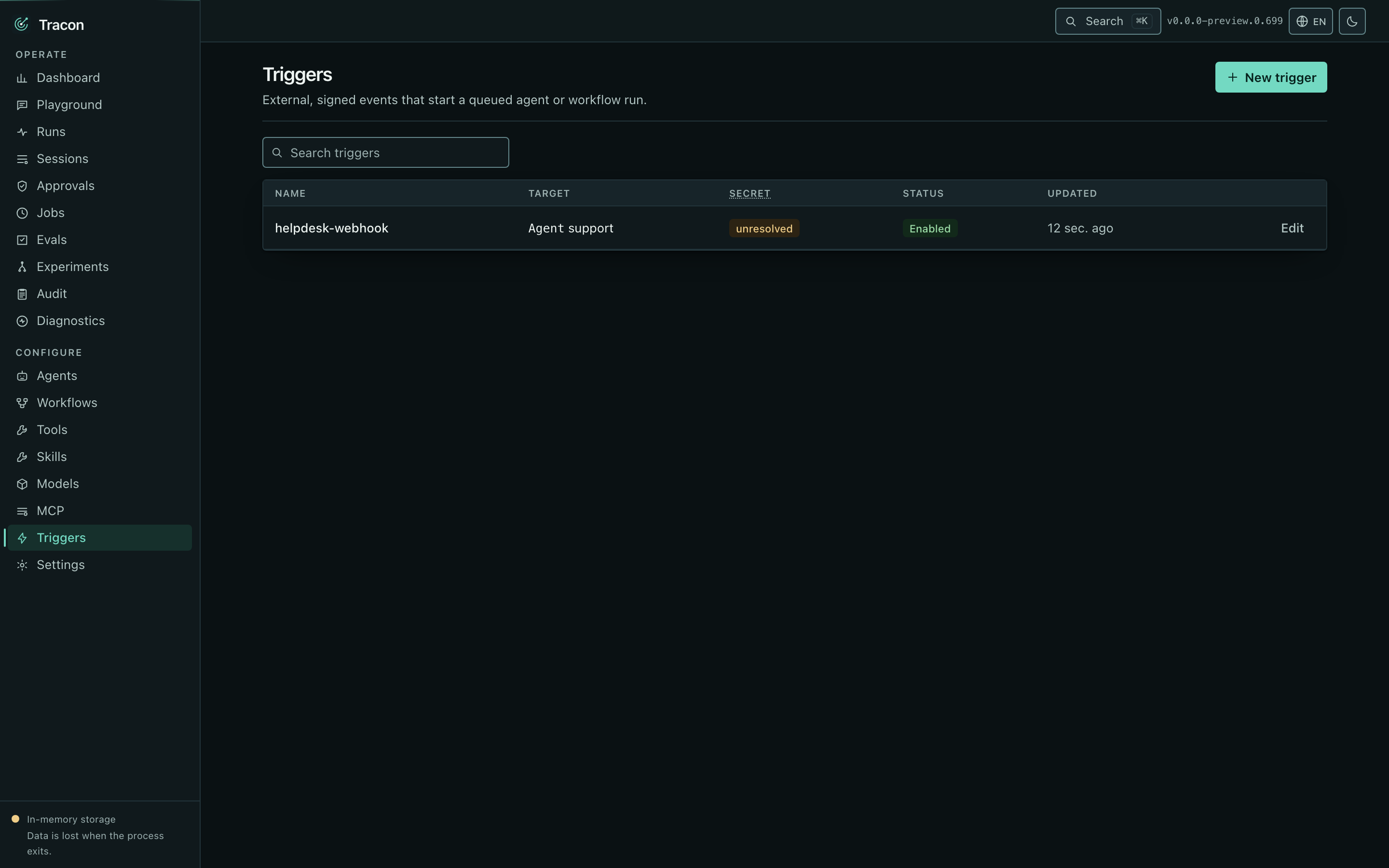 Inbound triggers let an external system start a queued run with one signed request and
no API key. A trigger's editor shows the exact URL to configure in that system, the
target agent or workflow, and the name of the configuration key holding its signing
secret — see [Inbound triggers](/guides/inbound-triggers/).
### Diagnostics
Inbound triggers let an external system start a queued run with one signed request and
no API key. A trigger's editor shows the exact URL to configure in that system, the
target agent or workflow, and the name of the configuration key holding its signing
secret — see [Inbound triggers](/guides/inbound-triggers/).
### Diagnostics
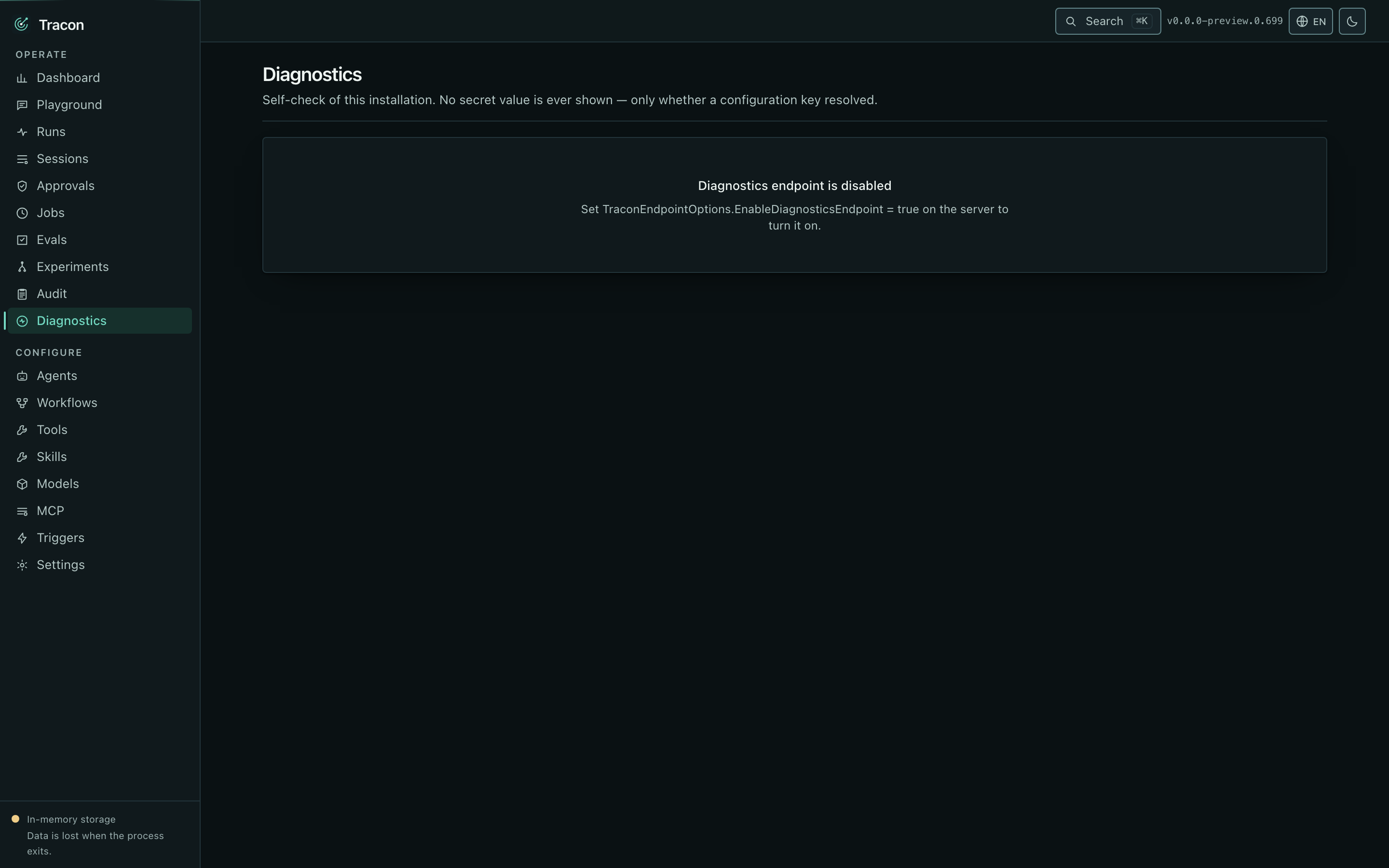 Diagnostics answers "is this deployment actually wired up the way I think": which
stores are active, whether migrations are up to date, and what is pending.
It is opt-in because setup details are sensitive. Enable the Admin endpoint before
the screen can load it:
```csharp
app.MapTracon("/tracon", options =>
{
options.EnableDiagnosticsEndpoint = true;
});
```
## Settings
Diagnostics answers "is this deployment actually wired up the way I think": which
stores are active, whether migrations are up to date, and what is pending.
It is opt-in because setup details are sensitive. Enable the Admin endpoint before
the screen can load it:
```csharp
app.MapTracon("/tracon", options =>
{
options.EnableDiagnosticsEndpoint = true;
});
```
## Settings
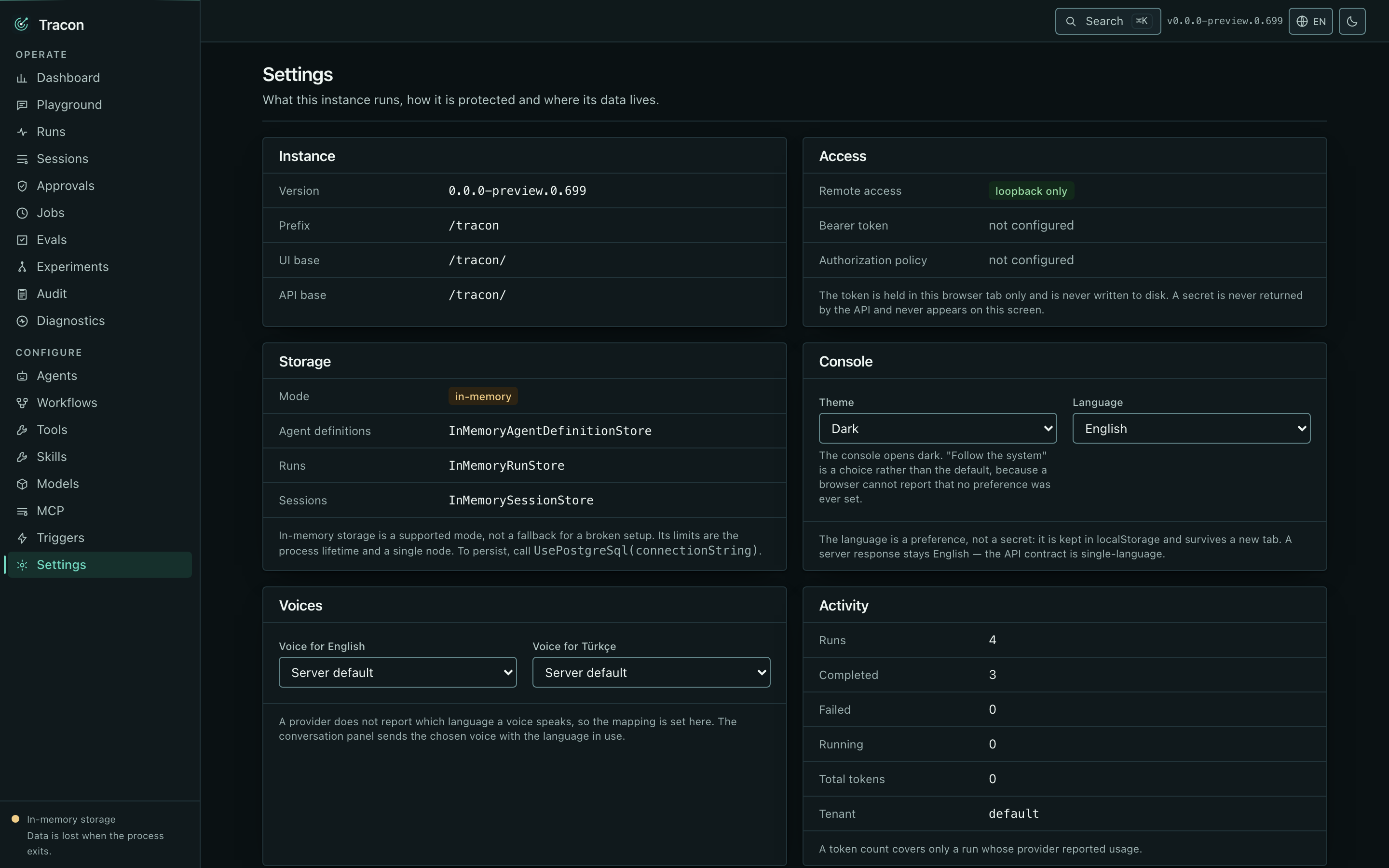 Version, prefix, authentication method, active stores, theme, and language.
## Embeddable chat widget
`Tracon.UI` also builds a second, much smaller bundle: a floating chat widget
meant for a **different** page — your own product's site, not the console. It ships
from a separate Vite entry, with its own budget gate (30 KB gzip; current size:
2.7 KB), so console code cannot leak into it. `UseUI()` serves both; no separate
registration is needed.
```html
```
The widget calls the run endpoint directly from the embedding page's origin, so
[`AllowedOrigins`](/reference/configuration/) must list that origin —
empty by default, so a page you have not explicitly allowed is blocked by the
browser. See
[Client-side tools and the embeddable widget](/guides/client-side-tools/)
for the full walkthrough, including how the widget runs a client-side tool.
## Things worth knowing
- The console works under **any** prefix and learns it at run time
- Dark and light themes. A fresh console opens dark; Settings also offers
"follow system", which then tracks the operating system
- English and Turkish; the default follows the browser. Server messages are shown as
they are and never translated — the same failure has to read the same way in a log,
a test, and a support ticket
- A command palette on `⌘K` / `Ctrl+K` reaches every screen, every recent run and
session, and the few actions that are not a navigation
- The first `Tab` on any screen is "Skip to content". Every layer closes with
`Esc` and hands focus back to whatever opened it
- Buttons the caller has no role for are hidden, based on what `/api/meta` reports.
A screen your role cannot open says so — it does not show you an empty one
- Every list carries a labelled filter strip, and its "clear" appears only while
something is actually narrowed. Empty lists say how to create the first entry,
except where an empty list is the state you want: no approval waiting, no
standing quota, no script grant, no auto-rollback rule
- Every failed request shows the server's own words and offers a retry in place,
so a 500 is not a dead end that only a page reload escapes
- Loading is a skeleton sized to the rows that are coming, so arriving data does
not move the page under the pointer
- Descriptions ride in tooltips that appear on hover **and** on keyboard focus and
dismiss with `Esc`. The `title` attribute is used only for the full value behind
something abbreviated — a relative time, a shortened identifier
- The token is kept in `sessionStorage` and is gone when the tab closes; theme and
language live in `localStorage`
- An action that destroys something you cannot type back — an agent and its version
history, a session's messages, an eval suite and its scores, an experiment's
variant map, a skill and its scripts — asks once more before it runs. An action
that is merely irreversible does not: deleting a schedule, a trigger, an MCP
server or an approval rule stays one click, because the form beside it puts the
same thing back. Both kinds say what they will do before you press them.
Confirming everything is the same as confirming nothing
- The JavaScript budget is 250 KB gzip and is enforced by the build. The build
prints the current measured size; documentation does not duplicate that value.
- Four run-time JavaScript dependencies, and the build fails on a fifth. Dialogs,
menus, tooltips and the command palette are written against the platform rather
than pulled from a component library. The browser's own `confirm()` is not used
anywhere: it arrives in the browser's language rather than yours, and its default
button is the one that says yes
### Editor boundaries
Every editor saves with a full replace, so each one sends back every field it
loaded, including the fields it has no control for. Saving without a change leaves
the record as it was.
- The agent editor supports structured output, harness settings including the
loop, compaction, and conversation memory (one box and the search choice). It has no
control for provider-specific `ProviderSettings`, static `McpResourceUris`, a Knowledge
vector binding, the search limit of conversation memory, or a `todoCompletion`
criterion's `modes`. It keeps them as they are; change them through code or the
management HTTP API.
- The workflow editor keeps a workflow's run parameter schema as it is and has no control
for it. Change the schema with `PUT /api/workflows/{name}`.
- A quota's agent and period identify the rule, so they are locked while you edit
it. To move a rule, delete it and add a new one.
## Read next
- [Securing the endpoints](/getting-started/security/) — why the shell is
exempt from the bearer layer
- [The HTTP API](/http-api/) — everything the console does, as requests
- [Client-side tools and the embeddable widget](/guides/client-side-tools/) — let a client execute approved tools through the widget contract.
— a tool whose body runs in the browser, and the chat widget that runs it
Version, prefix, authentication method, active stores, theme, and language.
## Embeddable chat widget
`Tracon.UI` also builds a second, much smaller bundle: a floating chat widget
meant for a **different** page — your own product's site, not the console. It ships
from a separate Vite entry, with its own budget gate (30 KB gzip; current size:
2.7 KB), so console code cannot leak into it. `UseUI()` serves both; no separate
registration is needed.
```html
```
The widget calls the run endpoint directly from the embedding page's origin, so
[`AllowedOrigins`](/reference/configuration/) must list that origin —
empty by default, so a page you have not explicitly allowed is blocked by the
browser. See
[Client-side tools and the embeddable widget](/guides/client-side-tools/)
for the full walkthrough, including how the widget runs a client-side tool.
## Things worth knowing
- The console works under **any** prefix and learns it at run time
- Dark and light themes. A fresh console opens dark; Settings also offers
"follow system", which then tracks the operating system
- English and Turkish; the default follows the browser. Server messages are shown as
they are and never translated — the same failure has to read the same way in a log,
a test, and a support ticket
- A command palette on `⌘K` / `Ctrl+K` reaches every screen, every recent run and
session, and the few actions that are not a navigation
- The first `Tab` on any screen is "Skip to content". Every layer closes with
`Esc` and hands focus back to whatever opened it
- Buttons the caller has no role for are hidden, based on what `/api/meta` reports.
A screen your role cannot open says so — it does not show you an empty one
- Every list carries a labelled filter strip, and its "clear" appears only while
something is actually narrowed. Empty lists say how to create the first entry,
except where an empty list is the state you want: no approval waiting, no
standing quota, no script grant, no auto-rollback rule
- Every failed request shows the server's own words and offers a retry in place,
so a 500 is not a dead end that only a page reload escapes
- Loading is a skeleton sized to the rows that are coming, so arriving data does
not move the page under the pointer
- Descriptions ride in tooltips that appear on hover **and** on keyboard focus and
dismiss with `Esc`. The `title` attribute is used only for the full value behind
something abbreviated — a relative time, a shortened identifier
- The token is kept in `sessionStorage` and is gone when the tab closes; theme and
language live in `localStorage`
- An action that destroys something you cannot type back — an agent and its version
history, a session's messages, an eval suite and its scores, an experiment's
variant map, a skill and its scripts — asks once more before it runs. An action
that is merely irreversible does not: deleting a schedule, a trigger, an MCP
server or an approval rule stays one click, because the form beside it puts the
same thing back. Both kinds say what they will do before you press them.
Confirming everything is the same as confirming nothing
- The JavaScript budget is 250 KB gzip and is enforced by the build. The build
prints the current measured size; documentation does not duplicate that value.
- Four run-time JavaScript dependencies, and the build fails on a fifth. Dialogs,
menus, tooltips and the command palette are written against the platform rather
than pulled from a component library. The browser's own `confirm()` is not used
anywhere: it arrives in the browser's language rather than yours, and its default
button is the one that says yes
### Editor boundaries
Every editor saves with a full replace, so each one sends back every field it
loaded, including the fields it has no control for. Saving without a change leaves
the record as it was.
- The agent editor supports structured output, harness settings including the
loop, compaction, and conversation memory (one box and the search choice). It has no
control for provider-specific `ProviderSettings`, static `McpResourceUris`, a Knowledge
vector binding, the search limit of conversation memory, or a `todoCompletion`
criterion's `modes`. It keeps them as they are; change them through code or the
management HTTP API.
- The workflow editor keeps a workflow's run parameter schema as it is and has no control
for it. Change the schema with `PUT /api/workflows/{name}`.
- A quota's agent and period identify the rule, so they are locked while you edit
it. To move a rule, delete it and add a new one.
## Read next
- [Securing the endpoints](/getting-started/security/) — why the shell is
exempt from the bearer layer
- [The HTTP API](/http-api/) — everything the console does, as requests
- [Client-side tools and the embeddable widget](/guides/client-side-tools/) — let a client execute approved tools through the widget contract.
— a tool whose body runs in the browser, and the chat widget that runs it